

Power BI URL Filters – How To Pre Filter Your Reports!
Most Power BI users share reports one of two ways: they send the full report URL and ask people to filter it themselves, or they build separate reports for each team and spend the next year maintaining them.
Neither approach is ideal. Which is why URL filters are a great third option!
By appending a short query string to a report URL, you can control exactly what a reader sees the moment they open the link.
All without touching the underlying report, without duplicating it, and without relying on your readers to set up their own filters correctly.
This guide covers how URL filters work, how to write the syntax correctly, and where they will save you time.
What URL Filters Actually Do
A URL filter appends a filter expression to the end of a report URL as a query string. When someone opens that link, the Power BI Service reads the parameters and applies the filters automatically.
The report and data model are completely unchanged – the filter only affects the initial view the reader lands on.
The most important thing to understand about URL filters is what they are not: they are not a security mechanism. Anyone with access to the report can open the Filters pane and remove or change the URL filter after the page loads.
URL filters set the initial view. They do not restrict what data a user can reach.
They are not a substitute for Row-Level Security (RLS), which enforces data access at the model level.
The Basic Syntax
URL filters follow a specific structure. Power BI is unforgiving with syntax – a small error will break the entire filter silently, with no error message and no filtered output.
The basic pattern is:
[Report URL]?filter=TableName/FieldName eq ‘Value’
Breaking that down:
?filter=marks the start of the filter query stringTableName/FieldNamespecifies the table and column to filter – both are case-sensitive and must match exactly how they appear in the data modeleqis the equals operator'Value'is the filter value – text values need single quotes, numeric values do not
Case Sensitivity: What Catches People Out
Table names and field names are case-sensitive. The values are not. So Sales/Region eq 'north east' will work even if the data contains ‘North East’, but sales/Region will fail if the table is called Sales.
Always check the exact names in Power BI Desktop’s Fields pane before building a URL filter.
Spaces, underscores, and capital letters all count.
Example: Filtering a Sales Report to One Region
If your report URL is:
https://app.powerbi.com/groups/me/reports/abc12345-6789-defg-hijk
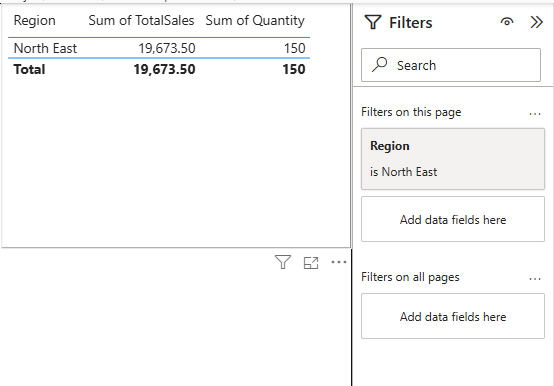
A URL filter for the North East region only looks like this:
https://app.powerbi.com/groups/me/reports/abc12345-6789-defg-hijk?filter=Sales/Region eq 'North East'
In this example, Sales is the table name, Region is the column name, and 'North East' is the text value being matched.
It’s a great way to help your Power BI rollout, as you can ensure the right reports get to the right audiences.
Tip From Our Training Rooms: Before building any URL filter, open the Fields pane in Power BI Desktop and check the exact table and column names.
They are case-sensitive and must match the model exactly – not how the field label appears in a visual, but how it’s named in the data model itself.
The most common version of this mistake is capitalisation: a column that displays as region in a visual may be called Region in the model.
In our London-based Power BI workshops, we always give this simple tip:
Thirty seconds in the Fields pane before you start is quicker than working backwards from a broken filter.
Filtering on Multiple Values and Multiple Fields
Most real-world use cases involve more than a single value filter. URL filters support two types of compound filtering: filtering one field against multiple values, and filtering across multiple fields simultaneously.
Single Field, Multiple Values
Use the in operator with a comma-separated list inside parentheses:
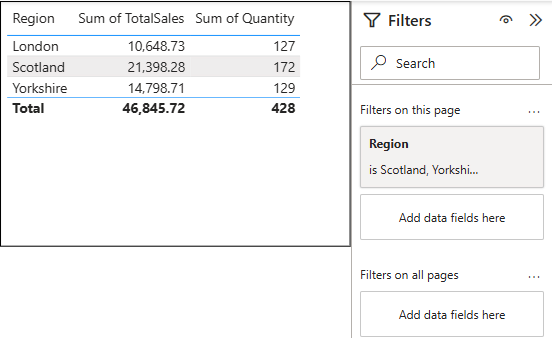
?filter=Sales/Region in ('Scotland','London','Yorkshire')
This returns records where Region is Scotland, London, or Yorkshire. The in operator is much cleaner than chaining multiple eq expressions when you have a list of values to match.
Multiple Fields
Chain filter expressions using and:
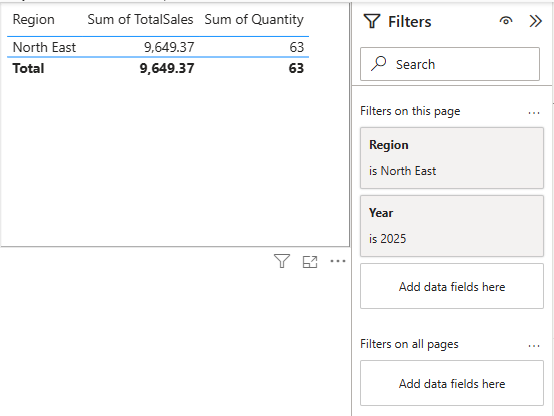
?filter=Sales/Region eq 'North East' and Sales/Year eq 2025
This filters to North East region and 2025 simultaneously. Note that Year here is numeric, so it takes no single quotes.
Combining Both: A More Complex Example
?filter=Sales/Region eq 'North East' and Sales/Year eq 2025 and Sales/Category in ('Electronics','Accessories')
This filters to North East, year 2025, and either Electronics or Accessories. One URL, no additional reports needed.
Limits to Be Aware Of
- A maximum of 10 filter expressions connected by AND
- URLs are capped at 2,000 characters – longer filters will need to be simplified or broken into separate links
Common Syntax Mistakes – And How to Fix Them!
URL filters fail silently. There is no error message. The report simply loads unfiltered. This means debugging can feel like searching in the dark. These are the four issues that account for the vast majority of broken URL filters.
Mistake 1: Spaces in Table or Field Names
If your table is called Sales Data or your column is called Product Category, the space will break the URL parser. You cannot use the space character directly.
Fix: replace every space with _x0020_
?filter=Sales_x0020_Data/Product_x0020_Category eq 'North East'
Mistake 2: Missing Single Quotes Around Text Values
Text values always need single quotes. Numeric values never do.
This is the most frequent error for people just starting with URL filters.
?filter=Sales/Region eq North East        ← broken
?filter=Sales/Region eq 'North East'      ← correct
?filter=Sales/Year eq 2025                ← correct (numeric, no quotes)
Mistake 3: Conflicting Report-Level Filters
This one is particularly easy to miss. If the report already has a filter applied in the Filters pane, say, Year = 2024, and your URL filter passes Year eq 2025, Power BI combines them with AND logic.
The result is a report filtered to Year = 2024 AND Year = 2025, which returns nothing.
The report appears to work but shows an empty result. You check your syntax repeatedly and cannot find the problem, because the syntax is correct, the issue is the conflict with an existing filter.
Fix: before distributing filtered URLs, clear any report-level filters that could conflict, or set them to All.
If URL filtering is a core part of how you distribute this report, design it without default filters from the start.
Mistake 4: Special Characters in Values
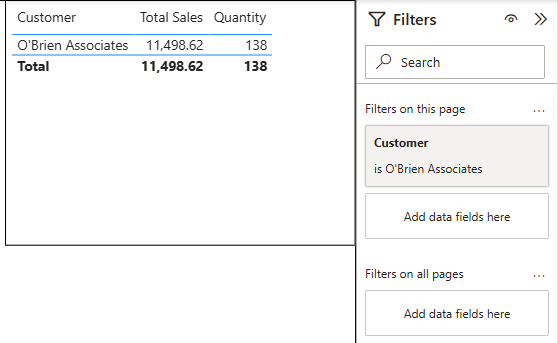
Apostrophes, ampersands, and percent signs in filter values break the URL. A customer called O’Brien Associates will cause the filter to fail because the apostrophe in the name breaks the single-quote structure of the filter expression.
Fix: encode the special characters. An apostrophe becomes _x0027_:
?filter=Sales/Customer eq 'O_x0027_Brien_x0020_Associates'
Where URL Filters Work Best
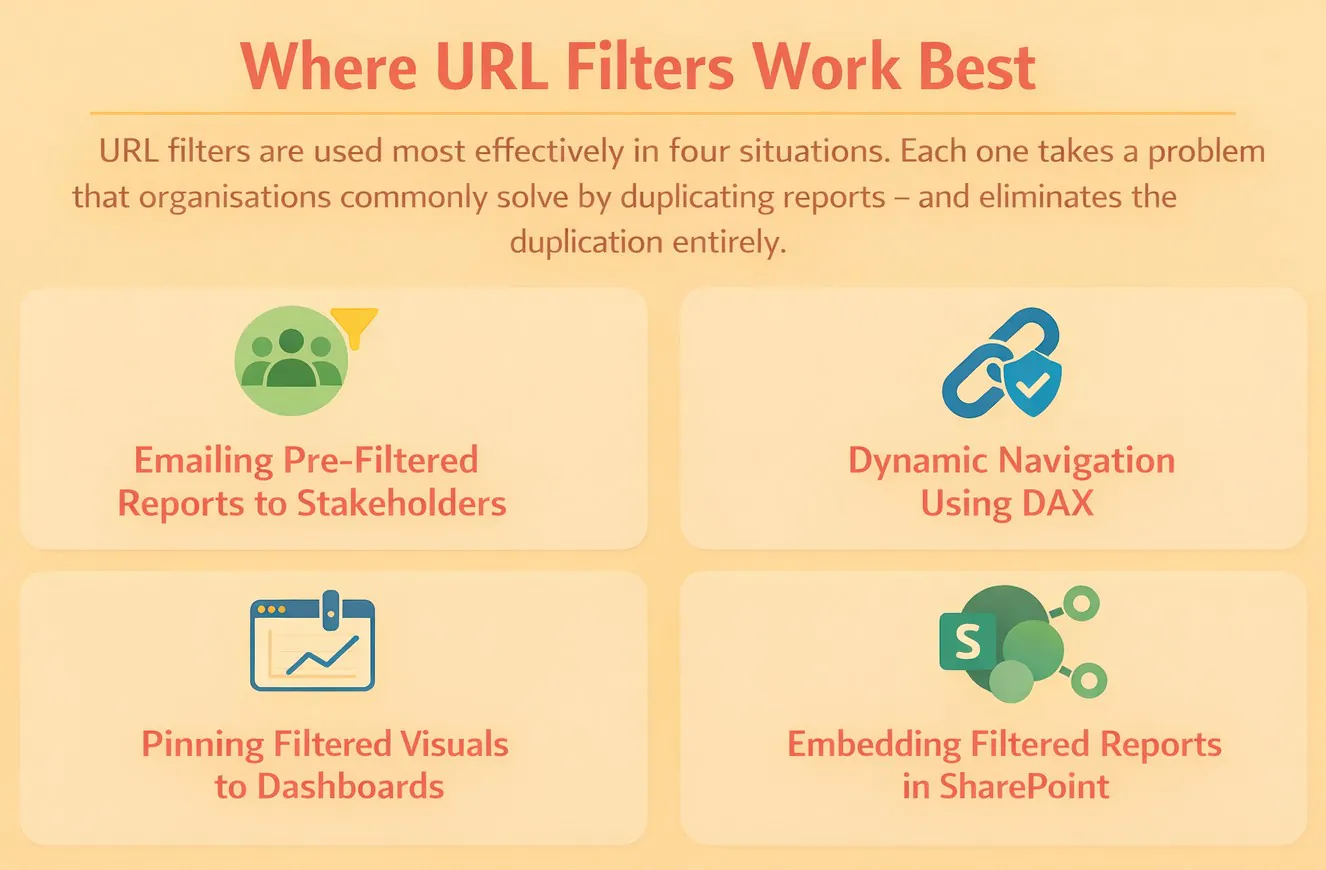
Like a lot of Power BI tools, there are a few use-cases where URL filters work at their best.
Implementing them means having a good awareness of your situation, so to start off here are four great use-cases.
1 – Emailing Pre-Filtered Reports to Regional Stakeholders
A retailer with regional managers across the UK typically has two options: send everyone the same report and tell them to filter it themselves, or build separate reports for each region. Both create ongoing maintenance or ongoing confusion.
URL filters offer a cleaner path. Build one report, create a filtered URL for each region, and email the right link to each manager:
...report-url?filter=Sales/Region eq 'North East'
...report-url?filter=Sales/Region eq 'Scotland'
...report-url?filter=Sales/Region eq 'Yorkshire'
Each manager opens their link and lands directly on their data. No filter setup, no scrolling through other regions, no scope for confusion.
2 – Dynamic Navigation Using DAX
You can generate filtered URLs dynamically using a calculated column in DAX, which makes it possible to build a navigation table that links directly to filtered views of a second report:
Filtered Link = "https://app.powerbi.com/groups/me/reports/abc12345?filter=Sales/Category eq '" & Sales[Category] & "'"
Add this column to a table visual. When a user clicks a row, the detailed report opens already filtered to that category.
This is particularly useful for summary-to-detail navigation patterns where you want to avoid slicers cluttering a focused breakdown report.
If this sounds a little confusing, you might need our advanced DAX course to bring you up to speed!
3 – Pinning Filtered Visuals to Dashboards
Open the report with your URL filter applied, then pin the visual to a dashboard. In the tile settings, paste the filtered URL as the custom link.
By default, clicking a dashboard tile opens the unfiltered report – the custom link is what overrides that behaviour and preserves the filtered context.
4 – Embedding Filtered Reports in SharePoint
Use the Power BI web part in SharePoint Online and configure it with a URL that includes your filter parameters.
A single report can then serve multiple department pages, each showing only the relevant slice of data.
Note that the SharePoint web part has limited URL filter support, always test thoroughly before relying on this in production.
What URL Filters Cannot Do
If you build a workflow around URL filters, you need to know it’s limitations!
Like many tools in Power BI, they aren’t the be all end all, and they won’t always work for you.
Environments Where URL Filters Don’t Work
- Publish to Web: Public embed URLs do not support filter parameters
- Export to PDF: Exported documents reflect the current visual state, not the URL filter
- SharePoint Online web part: Limited support – filters may not persist reliably
- Microsoft Teams tabs: Teams does not allow you to specify a filtered URL when adding a tab
URL Filters Are Not Security
This point is worth restating clearly: URL filters are not Row-Level Security.
A user who opens a filtered link can open the Filters pane, clear the URL filter, and see all the data the report contains.
This is not a bug or a loophole, it is the intended behaviour.
URL filters are a client-side viewing convenience, not a server-side access restriction.
If you need to ensure that a user can only see data for their own region, department, or customer list, implement RLS at the data model level.
Trainer Insight – When Things Go Wrong
The most common frustration we see with URL filters on our Power BI courses isn’t the syntax – most delegates get the basic pattern fairly quickly. It’s when the filter breaks.
When a URL filter breaks, Power BI doesn’t tell you. The report loads, it looks fine, and the filter simply hasn’t been applied.
Delegates often spend a long time re-checking their syntax when the issue is actually one of the four problems above.
Make sure you plan out your implementation well, as Power BI will not do a great job of helping you!
Conclusion
Power BI URL filters are a lightweight, effective way to share reports with a pre-set view.
They eliminate the need to duplicate reports , reduce the burden on users to set up their own filters, and make it straightforward to embed context-specific views of a single report across SharePoint pages, dashboards, and emails.
The syntax has enough gotchas – case sensitivity, encoded spaces, special characters, existing filter conflicts – that it rarely works perfectly on the first attempt.
Once you understand the rules, the pattern is consistent and quick to apply.
- Facebook: https://www.facebook.com/profile.php?id=100066814899655
- X (Twitter): https://twitter.com/AcuityTraining
- LinkedIn: https://www.linkedin.com/company/acuity-training/