

Input Slicer in Power BI – Filter Long Lists Fast!
Filtering large lists in Power BI should not feel like scrolling endlessly through hundreds of dropdown values.
The Power BI input slicer makes filtering faster and smarter by allowing users to type or paste values directly into a slicer.
Instead of searching through long lists of Order IDs, account numbers, or SKUs, users can enter what they know, including partial values, and instantly filter the report.
Whether you are building reports for business users or designing translytical workflows, the Power BI input slicer provides a cleaner and more efficient filtering experience.
What the Input Slicer Is (And What It Replaced)
The Power BI input slicer was previously released in preview as the Text slicer. It has now been renamed and made available for everyone.
How It Works
The interaction model is simple:
- The user types a value
- Presses Enter or selects Apply
- The value becomes a filter pill
- Matching records are filtered instantly
This eliminates dropdown searching and makes filtering large datasets significantly faster.
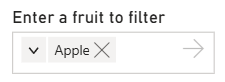
For report consumers, the experience feels far more natural with this approach. Instead of adapting to the report itself, they can start with the values they already have in front of them (like order numbers or names from a CRM).
Two Modes: Filtering vs Input (This Matters)
The Power BI input slicer operates in two distinct modes. Choosing the correct one depends on your report design goals.
1) With a Data Column (Filtering Mode)
When you assign a text column to the input slicer:
- It functions as a filter
- Typed values are matched against the selected column
- An operator determines how matching is performed
This behaves like an advanced, text-driven slicer optimized for large datasets, and it’s the mode that we tend to teach first on our London Power BI workshops because it’s so approachable and convenient.
Instead of forcing your users to scroll through hundreds or even thousands of entries, the report lets them work directly from memory and pasted values.
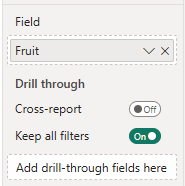
2) Without a Data Column (Input Mode)
When no column is assigned:
- Filtering is disabled
- The visual becomes a pure input control
This configuration supports translytical task flows, including:
- Comments
- Approval notes
- Writeback parameters
- Operational workflows
In this mode, the slicer collects input instead of filtering visuals.
How Filtering Works: Operators + Multiple Values
One of the most powerful capabilities of the Power BI input slicer is operator-based filtering combined with multi-value input.
Each entered value becomes its own filter pill, impacting filter context and enabling compound filters.
Available Operators
- Contains any
- Contains all
- Starts with any
- Is any (exact match)
- Negative variants:
- Does not contain
- Is not any
These operators allow partial matches, exact matches, prefix filtering and exclusion filtering.
Check out this table for a quick overview of what operator will work best for you!
| If you want to… | Use this operator |
|---|---|
| Find records containing a word or phrase anywhere | Contains any |
| Filter to records that include all of several terms | Contains all |
| Match by the beginning of a value (e.g. surname “Sm…”) | Starts with any |
| Paste exact IDs, codes, or account numbers from Excel | Is any |
| Exclude specific values from results | Is not any / Does not contain |
Note: Report creators set the default operator – but consumers can change it after you publish. If your users are changing it unexpectedly, lock the operator in the Format pane.
Once you have chosen your operator, enable multi-value input, so users can have more than one filter at a time.
Go to:
Format pane → Slicer settings → Options → Accept multiple values
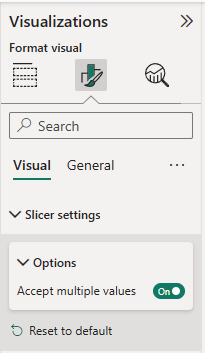
“Filter Pills” UX: Editing, Removing, and Clustering
Filter pills make the Power BI input slicer visually distinct from traditional slicers.
Users can:
- Double-click a pill to edit
- Click X to remove
- Expand clustered pills when many values exist
When multiple values are entered, pills automatically cluster to preserve layout space.
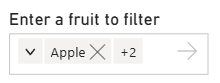
Report Builder Best Practices
- Place the input slicer in a dedicated Filter Zone at the top of the page
- Provide enough horizontal space
- Avoid placing it in narrow side panels
This ensures optimal usability.
Real-World Scenarios
Sales
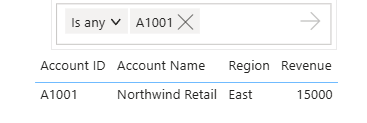
Filter specific Account IDs using Is any for exact matches. Ideal for campaign follow-ups.
This can work super well for account management teams who already have a list of accounts in Excel or a CRM export.
Instead of recreating filters manually, they can paste several knows values at once and move straight into their analysis.
Support
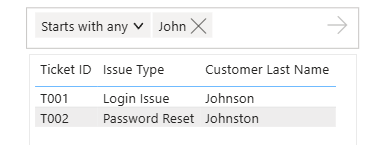
Search partial surnames like “John…” using Starts with any to narrow customer records.
Very useful when support teams don’t have a full reference numbers, but do have partial customer details – maybe from a phone call or a ticket.
In cases like this, fast narrowing is often the most valuable approach.
Translytical
When organisations explore writeback or operational reporting, the input slicer becomes very useful.
It helps support the idea that reports can sit closer to business processes, rather than being limited to passive dashboards.
You can collect:
- Comments
- Approval notes
- Workflow input
All using Input mode in task flows.
Finance / Operations
Finance and operations users are often working with lists that already exist – just outside of Power BI.
The ability to paste directly into a slicer removes a lot of repetitive clicking.
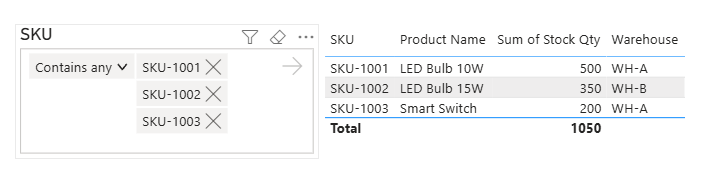
Users can paste SKU codes or invoice numbers copied from Excel directly into the Power BI input slicer to instantly filter reports.
This is significantly faster than searching dropdown lists.
Formatting and Configuration Tips
You can customize:
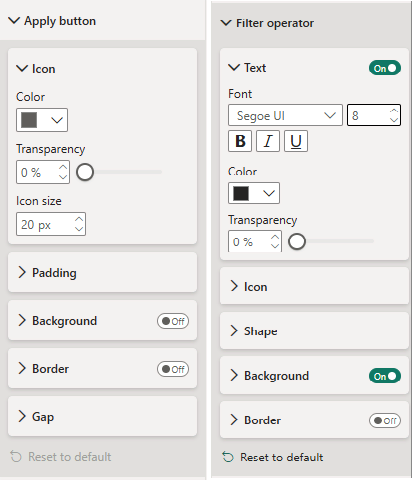
- Operator dropdown display (icon vs icon + text)
- Apply button formatting
- Input box styling
- Dismiss button visibility
Clean UI Tip! To hide Apply or Dismiss buttons:
Set Icon size = 0
This creates a cleaner, minimalist interface.
Considerations and Limitations
Be aware of these constraints:
- The Power BI input slicer supports text columns only
- Right-click paste is not supported
- Keyboard paste (Ctrl+V) works
Workaround for Numeric IDs
If filtering numeric IDs:
- Create a calculated text column using FORMAT()
- Use the new text column in the input slicer
Trainer Insight – From the Acuity Training Classroom
The most common confusion we see on our Power BI courses is when a tries to use the input slicer on a column of Order IDs or invoice numbers – and it simply doesn’t work.
The visual appears, they type a value, press Enter, and nothing filters. There’s no error message either!
The reason is almost always the same: the ID column is stored as a whole number, not text.
Power BI’s input slicer only works with text columns, and there’s no warning that tells you this is the problem.
The fix is a calculated column using the FORMAT() function:
It’s a two-minute fix once you know it – but without knowing the root cause, delegates spend a long time wondering if the slicer is broken.
The most common confusion we see on our Power BI courses is when a tries to use the input slicer on a column of Order IDs or invoice numbers – and it simply doesn’t work.
The visual appears, they type a value, press Enter, and nothing filters. There’s no error message either!
The reason is almost always the same: the ID column is stored as a whole number, not text.
Power BI’s input slicer only works with text columns, and there’s no warning that tells you this is the problem.
The fix is a calculated column using the FORMAT() function:
Order ID Text = FORMAT([Order ID], "0")
Add this column to your data model, assign it to the input slicer instead, and it works immediately.It’s a two-minute fix once you know it – but without knowing the root cause, delegates spend a long time wondering if the slicer is broken.
Conclusion
The Power BI input slicer solves problems that dropdown slicers quietly create – bloated filter panels, sluggish performance and consumers who can’t remember the exact string they are looking for.
Whether you are filtering tens of thousands of rows, working with partial values, or pasting IDs from another system, the input slicer handles it without the friction of digging through a list.
Beyond filtering, it opens the door to genuinely interactive reports.
The bottom line is that the input slicer isn’t just a UI tweak. It’s a meaningful step toward reports that feel faster, cleaner and built around how people actually work.


- Facebook: https://www.facebook.com/profile.php?id=100066814899655
- X (Twitter): https://twitter.com/AcuityTraining
- LinkedIn: https://www.linkedin.com/company/acuity-training/