

What Copilot Is And Isn’t For – For All Users
Contents
If you’ve seen Copilot but not sure what it is, or what to use it for – you aren’t alone! Copilot is now appearing on every Microsoft app, like Excel, Outlook, Word and Teams.
Copilot is essentially a Microsoft specific AI assistant, it’s designed to take information from one app to another seamlessly – you can take a spreadsheet from Excel, email it to someone with Outlook then create a note in Word summarising the report.
So what should you be using Copilot for? How can you get started? You have to start by learning what it is, what it isn’t, and where it can fit into your specific day-to-day work & personal life.
What Copilot Is
At its core, Copilot is an AI assistant that works with and inside Microsoft Applications.
It can:
- Read content you have access to
- Use content from documents, emails, chats and data
- Generate suggestions, summaries, explanations and drafts
Understanding exactly what Copilot does is a key part of our Copilot courses, but the key is: it doesn’t exactly “think” like we humans do. It looks at what you give it, and produces a response based on patterns and probabilities. Think of it like a real assistant, just one that works extremely quickly! It can only read what you give it, but it can read it all at lightning speed.
This also means that keeping your files clear, well-structured and documented well is extremely important.
What Copilot Isn’t
Copilot is powerful, but it has limits.
Copilot is not:
- A replacement for experience or expertise
- Guaranteed to produce correct results / conclusions
- A decision-maker
AI tools always produce answers with confidence, even if it doesn’t fully understand the situation you give it. Validation is very important when it comes to AI, do not let it go unsupervised!

How Business Owners / Managers Can Use Copilot
For business owners, the best use for Copilot is reducing friction, it should not replace leadership or decision-making. Some great places to start are:
- Summarising information
- Getting up to speed quickly
- Creating first drafts
Practical Example: Summarising an Email Thread
Copilot and Outlook go hand in hand, it’s the easiest and most convenient way to get started.
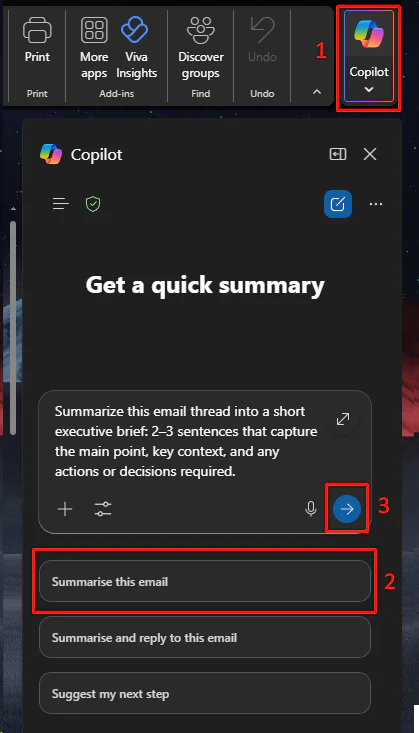
Imagine you’re sitting in on a meeting, and there’s a long email thread you haven’t been following closely. Copilot can summarise the conversation, highlight key decisions and list possible action points.
This saves time and helps you enter the meeting informed.
Just click on the email chain, click Copilot, and click “Summarise this email thread”, and Copilot will give you a great prompt – adjust it if you like then click go.
What Can Employees Use Copoilot For?
For employees, Copilot really shines in everyday tasks – especially for things you are less familiar with, or things that are repetitive. Copilot is a great fit for finance work for example. Common uses include:
- Explaining spreadsheets
- Drafting emails or documents
- Summarising meetings or chats
Practical Example: Understanding an Excel Sheet
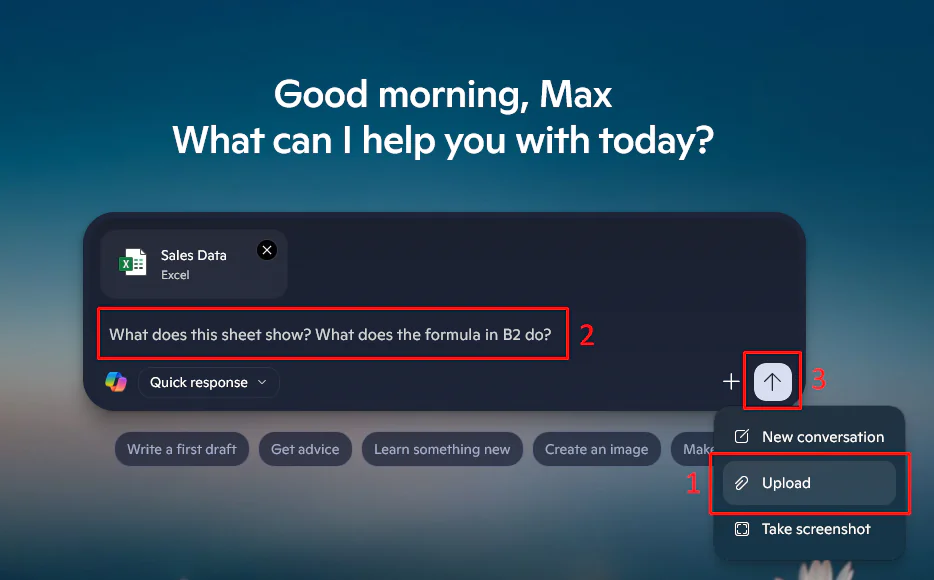
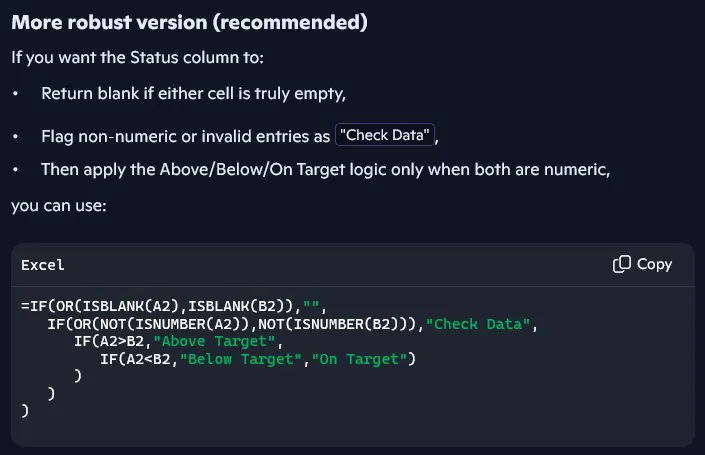
If you open a spreadsheet and see a sheet with confusing data and complex formulas you aren’t familiar with, Copilot can explain it for you.
It can break down the formulas, explain what each part is doing, and help you understand the logic at play.
Just open Copilot, attach your sheet, and ask! We have more tips on how to use Copilot for Excel if you like the look of this.
Copilot For Personal And Everyday Use
Outside of work, we think the best use of Copilot is organisation, writing and clarity. The best uses for it are:
- Collecting rough notes into structured text
- Improving clarity and tone
- Helping you get started with the page is blank
Practical Example: Drafting a CV
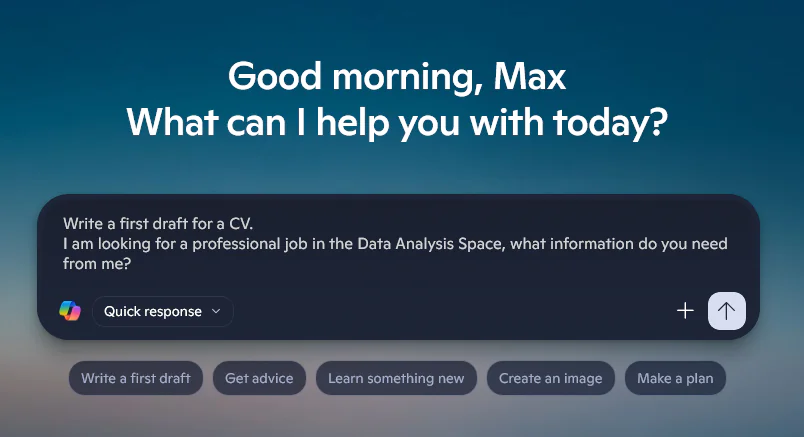
If you need to write a CV, application or personal statement, Copilot can take a few bits of information from you and turn them into a clear first draft.
It’s a great drafting partner, but remember you need to be its editor! Keep an eye on what it produces and don’t get lazy. Try the following prompt, and Copilot will tell you what information it needs from you.
Conclusion – Copilot Is A Skill, Not A Shortcut
Copilot isn’t here to replace people, it’s here to support more efficient work.
Used well, it saves us time and improves our productivity – but if used poorly, it can create confusion and false confidence. The difference between is in how you use the tool.
At the end of the day, Copilot rewards you if you use it skillfully.
- Facebook: https://www.facebook.com/profile.php?id=100066814899655
- X (Twitter): https://twitter.com/AcuityTraining
- LinkedIn: https://www.linkedin.com/company/acuity-training/