

Using Copilot To Generate Formulas In Excel
Contents
Writing formulas is one of the most useful – but also the most frustrating – parts of working with data.
Even when you know exactly what you need to calculate, it still takes time and knowledge to:
- Build the logic
- Remember the right syntax
- Structure the formula correctly
And that is where Copilot can be genuinely helpful.
It can turn plain-English instructions into formulas, suggest functions and combinations of functions – all while speeding up common tasks like lookups and explaining the logic behind each formula!
This makes it a very practical tool for everyday Excel work, whether you are a pro or a beginner.
So let’s take a look at how to use Copilot to generate Excel formulas, and how to prompt it more effectively.
What Copilot Is Good At When Writing Formulas
Copilot and Excel are a great team, especially when you know the result you want, but don’t want to build the formula from scratch. It can:
- Translate plain English into formulas
- Suggest the right function
- Build a first draft quickly
- Explain an existing formula
- Simplifying or restructuring a messy formula
In our experience, it specifically works best with conditional logic, lookups, error handling and untangling nested formulas.
Example: A Simple Copilot Formula Workflow
Let’s use a simple example first – just measuring sales vs a target.
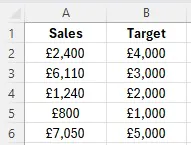
We need a “Status” column, which will take the Sales, and compare it against the Target – with different options for each possible outcome.
First thing to do is break down the logic step-by-step, and explain it to Copilot.
AI works best off instructions, so make it as clear as possible! For my prompt, I’ll write:
Write an Excel formula for a Status column.
If Sales is greater than Target return “Above Target”.
If Sales is less than Target return “Below Target”.
If Sales equals Target return “On Target”.
If either cell is blank, return blank.
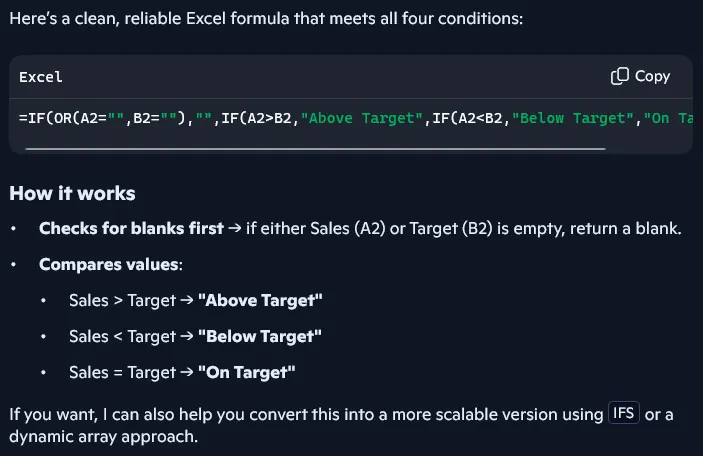
And I get a clean solution, that works for everything I specified – as well as an explanation.
Now, this is a great start, but it’s important you keep going with the following workflow too!
💡 Trainer Insight – The Table Requirement
A really common thing we see in our Copilot sessions is data formatted wrong.
If your data isn’t formatted as a table in Excel, then you might have a few issues!
The root cause of many issues is that Copilot is reading ranges you didn’t expect.
Sorting that out before looking at your prompts will save a lot of frustration.
If your data isn’t formatted as a table in Excel, then you might have a few issues!
The root cause of many issues is that Copilot is reading ranges you didn’t expect.
Sorting that out before looking at your prompts will save a lot of frustration.
Our Simple 2-Minute Formula Verification Workflow
You can’t blindly trust AI and everything it tells you – but you also don’t necessarily need a long QA process for every formula it generates.
What you need, is a quick check before using AI-generated formulas in your own work, but especially for reporting, dashboards, or shared workbooks.
That’s why we built this quick, repeatable workflow you can use in just 2 minutes.
1) Check The Formula Matches The Question
Before you start testing the syntax, ask:
- Does this formula actually answer the question I described?
- Is it returning the right output type (text, number, data, blank)?
It might sound useless, but a lot of people take this step for granted, assuming AI won’t make such an obvious mistake!
2) Test 3-5 Known Cases
Pick a few rows where you already know what the answer should be. Try and include a mix of:
- A normal case
- A blank / missing value case
- An edge case
- An unusual input
If a formula is only getting tested on one simple row, it will fail later on.
3) Check References And Fill Behaviour
In a big spreadsheet, the issue will often be with the references – not the logic.
Check through:
- Relative vs absolute references (A2 vs $A$2)
- How the formula behaves with copied down
- Whether a fixed threshold/range should stay static
- Whether table references would be safer and more readable
Some Copilot formulas will only work for one row, which is pretty useless!
4) Ask Copilot To Explain The Formula Back To You
This is one of the best checks out there, and almost never gets a spotlight!
After Copilot generates a formula, ask it:
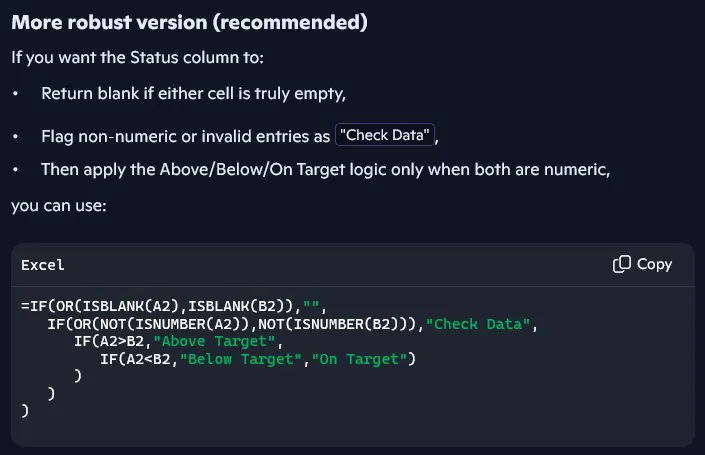
Explain this formula step by step and list any assumptions it makes.
Check for edge cases, and suggest a more robust version if needed.
This gets you a complete breakdown the formula and how they generated it – and tightens it up for you:
A Smarter Way To Use Copilot: Ask It For Test Cases
This is a really useful habit straight from our Copilot workshops in Manchester designed to make formula generation safer.
Instead of just asking for a formula, ask Copilot to generate test rows.
Follow-up prompt:
- Create 5 test cases for this formula, including edge cases and the expected output.
This simple change turns Copilot into a quick QA assistant, and helps you validate logic so much faster.
It also really improves your confidence before you put the formula into a larger dataset, or a workbook other people rely on.
💡 Trainer Insight – Workbook Structure
In our Excel and Copilot training sessions, a common misconception we see is that weak
formulas means the output was bad. In reality, we often see something else in the way –
formulas means the output was bad. In reality, we often see something else in the way –
Workbook Structure. Copilot performs much better when your data is organised in a way
that Excel and Copilot can both interpret cleanly. If headers are vague, columns mix different
data types, or the range has merged cells:
Copilot is more likely to generate formulas that are unreliable.
Final Thoughts – Formula Accuracy Starts With You
Copilot can save a lot of time when writing formulas in Excel.
It’s perfect when you already understand the outcome you want, but are looking for help getting to a first draft quicker – through building conditional logic, lookups or error handling.
But the biggest thing to remember is this:
A formula can be valid in Excel and still be wrong for the task.
That is the real risk with AI-generated formulas. In many cases, Copilot isn’t failing because of syntax, but because it has made an assumption you didn’t plan for – like blank cell behaviour, duplicate handling, or where the formula should be applicable.
That’s why the best way to use Copilot, is not a formula replacement, but a formula drafting and QA assistant.
Used this way, Copilot does not just help you write faster, but helps you build better habits.

- Facebook: https://www.facebook.com/profile.php?id=100066814899655
- X (Twitter): https://twitter.com/AcuityTraining
- LinkedIn: https://www.linkedin.com/company/acuity-training/