

Regex in Excel & REGEXREPLACE
Contents
Microsoft has quietly been adding regular expression support to Excel, also known as regex.
Instead of building up a few different text functions on top of each other, you can now use regex inside Excel formulas to search for patterns, and clean data much more efficiently.
Our favourite of these new additions is REGEXREPLACE, which lets you find text based on patterns and replace data in one simple formula.
It completely changes how we use Excel in 2026, so let’s break down what regex is, why it’s so useful, and exactly what it means for us as Excel users!
Before We Start – Update Excel!
These functions are pretty new, so if your Excel isn’t set up to automatically update, you might not have them.
Open up Excel, and type =REGEX into a cell, and make sure you see these functions:
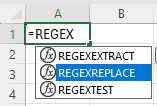
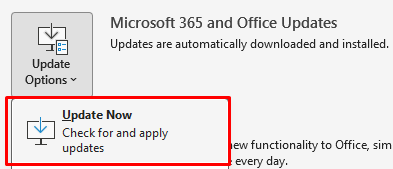
If you don’t then just click File > Account > Update Options > Update Now.
So What Is Regex?
Regex is a sequence of characters that specifies a match pattern in text. In describes the actual patterns of text with its own unique language, rather than exact values. We teach this on our more advanced Excel courses in London because once you get the hang of it, it’s so much more flexible.
For example, it can find:
- Any number, regardless of length
- Everything inside of brackets
- Text that starts with one character but ends with another
- IDs, reference codes, or email addresses
It’s built around structure, not just the position of characters.
A Simple Regex Example
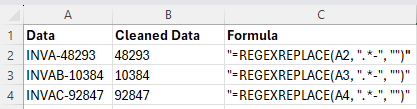
Imagine you have reference codes in your data like these:
INVA-48293
INVAB-10384
INVAC-92847
And that your goal is to pull out the numbers, and strip out the “INV-” segments. With old school Excel tools like the TRIM function, you would often rely on exact positions or lengths, which won’t work for everything in this data set since the lengths aren’t all the same.
With REGEXREPLACE, you can remove everything before the numbers and just describe the pattern you want to remove.
How Does REGEXREPLACE Work?
We just saw an example of REGEXREPLACE cleaning up a varied dataset, so how exactly does it work?
It finds text based on the regex pattern that you specify and replaces it with something else.
The syntax is:
=REGEXREPLACE(text, pattern, replacement)
Text – The original text or cell of text you want to replace
Pattern – The regex pattern to search for within the text
Replacement – What to replace it with
So in the above example we took A2, which is INVA-48293 for text, “.*-” for the pattern, and “” for the replacement. We made the replacement blank, so it just removes everything that it finds within the pattern.
Let’s break down the pattern: “.*-“
The first part .* is a wildcard, and matches any characters at the start of the text, – matches the dash. So together, everything up to and including the dash will get replaced with nothing. Excel removes the entire prefix, leaving just the numeric part. That’s why it works even on this inconsistent data set, because regex has its own set of rules, including wildcards!
Advanced REGEXREPLACE Example
Let’s try working with another data set, this time trying to pull out the numbers, and change the country code to a number equivalent. Our sample data is:
INV-49283 (UK)
INV-10384 (EU)
INV-92847 (US)
And we want to strip out the number, then change the country codes so that (UK) becomes 01, (EU) becomes 02, and (US) becomes 03.
With the traditional Excel formulas, cleaning and analysing this data would be a pretty awkward process, as it has country codes which are also within brackets. With REGEXREPLACE, you can just strip out everything that isn’t a number. Type in the following, don’t worry, we’ll break it down!
=REGEXREPLACE(A2, “.*-([0-9]+).*UK.*”, “$1-01”)
So this time, our function reads what is in A2, then uses the wildcard again to strip away the INV- just like before. After that, you’ll see we have ([0-9)+). This specifies to regex that we only want characters from 0-9, which encapsulates all numbers.
So now Excel just has 49283, but we also want to change it based on the country code. We use another wildcard surrounding UK – *UK.* – then with the last parameter which is the replacement, we use “$1-01”.
Now the formula has stripped out the numbers, and found the country code. With this, it replaces the text it currently has, which is just 49283 with 49283-01. $1 is the container for the text we stripped out, so if you were to change it to $1-England, that would produce 49283-England! You can adjust this for the other country codes in your data set, and clean it up all with one REGEXREPLACE.

Thinking In Patterns, Not Positions
Some of the functions here might look a little intimidating, but they are incredibly powerful. The key here is to try and switch your thinking, so that you are looking for patterns in your text, instead of just positions.
Regex has loads of different syntax you can use, there’s a really great regex cheat sheet here so you can get some ideas! We recommend you give it a look, and just try out a few in your own spreadsheets, it’s definitely worth the effort.
With regex, Excel can now find data with more accuracy and flexibility than ever before. It’s great for data with:
- Inconsistent prefixes or suffixes
- Numbers that aren’t in defined positions
- Extra characters that you want to adjust
All you have to do is build out the initial rule properly, and Excel will apply it consistently.
Conclusion
Regex actually comes from programming, and has been standard there for many years. It’s an amazing tool for data so we are very happy it finally landed in Excel!
With REGEXREPLACE, Excel users finally gain access to powerful text handling, and no longer need to use functions within functions, or apply several back to back in order to clean their data.
And alongside all this, your worksheets are easier than ever to read, so your colleagues won’t get lost in your process!

- Facebook: https://www.facebook.com/profile.php?id=100066814899655
- X (Twitter): https://twitter.com/AcuityTraining
- LinkedIn: https://www.linkedin.com/company/acuity-training/