

News & Tips
AllManagementMicrosoft CopilotMicrosoft ExcelMicrosoft Power AutomateMicrosoft Power BIMicrosoft PowerPointMicrosoft ProjectMicrosoft SharePointMicrosoft WordNewsPresentation SkillsSQLTime Management
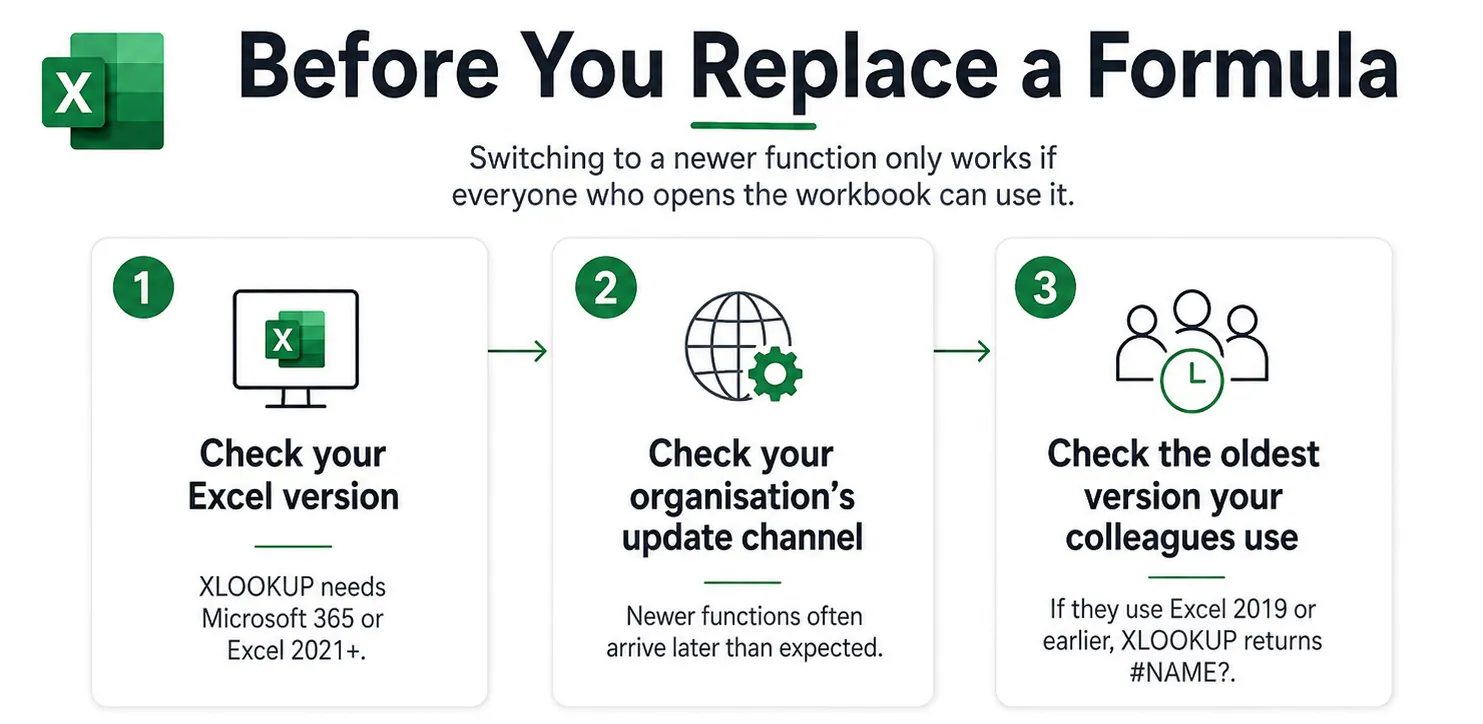
The Excel Skills Not Worth Learning Anymore (And The Three That Got More Valuable!)
Excel was first released in 1985. That’s over 30 years of updates, improvements and functions. On top of that, Microsoft often does not remove features, it just adds new ones on top of them, so needless to say a lot…
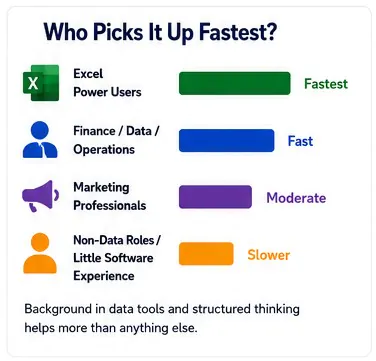
Is Power BI Easy to Learn?
The difficulty of Power BI depends almost entirely on what you’re trying to do with it. There’s a huge gap between “I can use Power BI” and “I’m a Power BI expert” and most people won’t tell you that. If…

How Remote Access Fits Into Excel Training
Running Excel training courses across London and Guildford means we think about device security differently to most companies. Every week, dozens of learners from different places sit down at our machines across the country and spend the day working through…
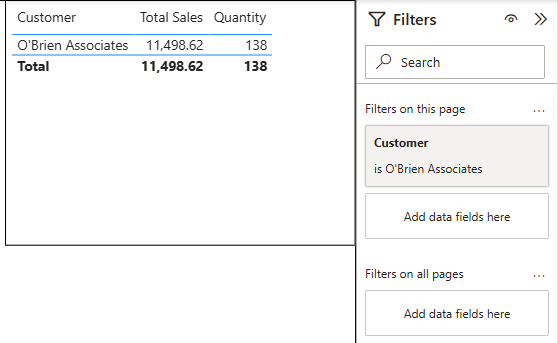
Power BI URL Filters – How To Pre Filter Your Reports!
Most Power BI users share reports one of two ways: they send the full report URL and ask people to filter it themselves, or they build separate reports for each team and spend the next year maintaining them. Neither approach…
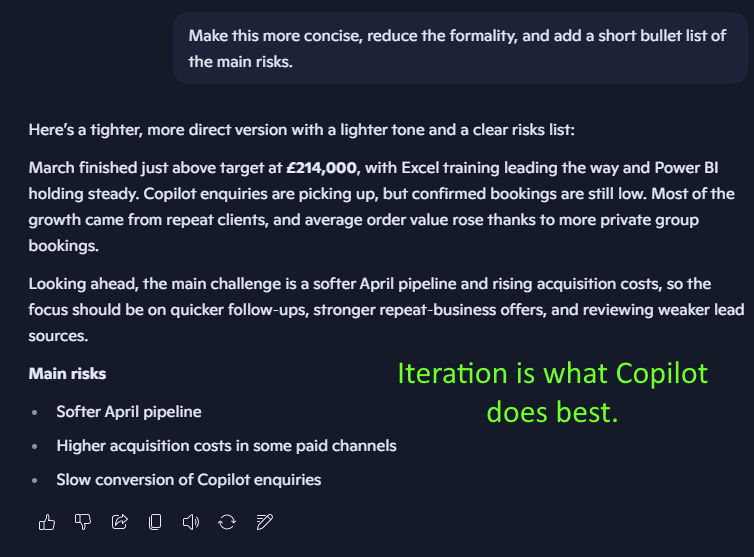
How To Think With Copilot
We’ve been teaching Copilot ever since it first released to the public, and this is the most important thing we teach: How do you actually approach your work with Copilot in mind? Most people who struggle with Microsoft Copilot aren’t…
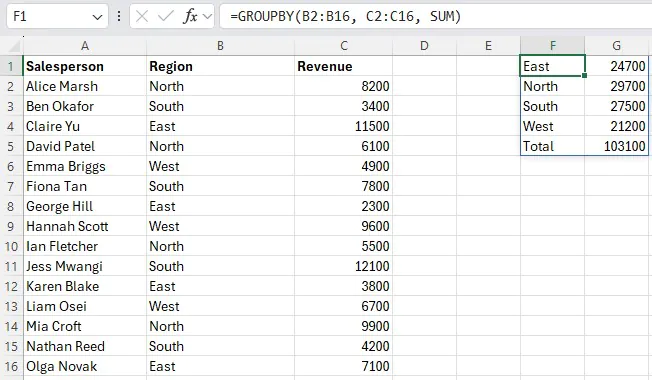
Excel’s GROUPBY Function: What It Does & When to Use It
If you’ve ever built a summary table in Excel by writing five separate SUMIFS formulas – one for each region, product, or department – you’ll appreciate what GROUPBY does. It collapses all of that into a single formula that updates…
Excel’s IMAGE Function: Put Pictures Directly Into Your Cells
Managing a spreadsheet with product images, staff photos, or visual data has always been awkward. You insert a picture, it floats over the cells, refuses to stay where you put it, and the moment anyone resizes a column the whole…
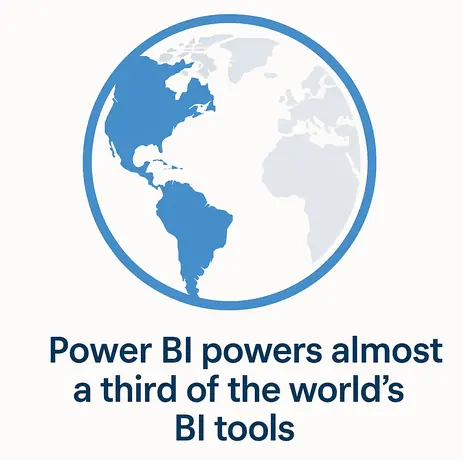
Power BI Statistics You Need To See (2026)
Power BI continues to dominate the analytics and business intelligence market. From small businesses, to the biggest conglomerates in the world – Power BI is the go-to software. As a Power BI training company, it’s important we stay on top…
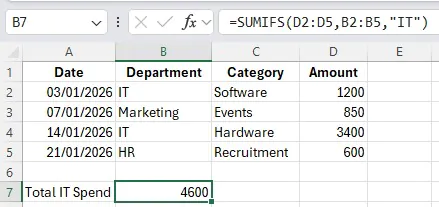
SUMIFS for Budget Reporting: Build A Summary Dashboard Without Pivot Tables
We run Excel workshops in Shepherds Bush every month, so we get to spot a lot of trends on how users use Excel at their jobs. There are countless project managers and finance assistants all over the UK building summary…
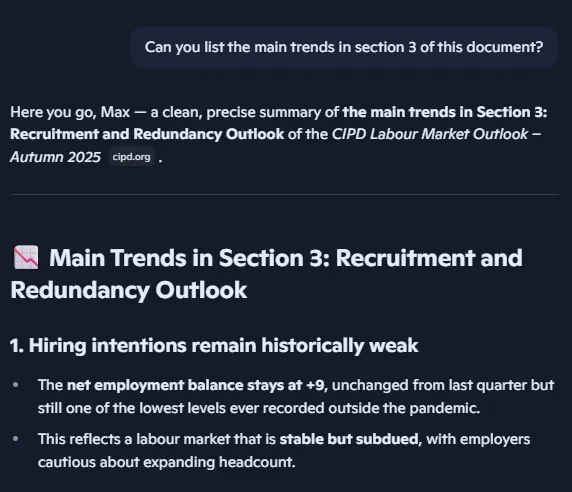
Implementing Copilot In Your Research – And When It Fails Without Telling You
AI has been changing the way we do things for the last couple years, and research is absolutely no different. You have a 40 page document to go through, so you open up Edge and ask it to summarise it.…
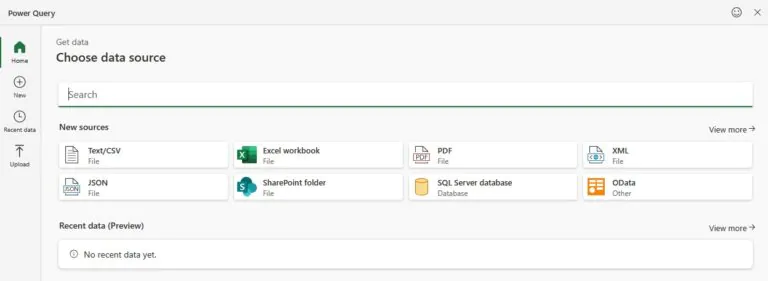
Power Query in Excel for the Web: What’s Changed
For years, Power Query was one of the main reasons Excel users couldn’t fully move their work to their browsers. You could view query results in Excel for the web, but if you needed to actually build or edit a…
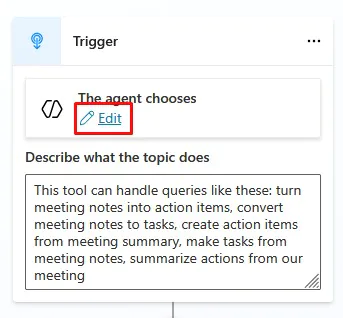
Copilot Studio – Building A Useful Meeting Agent
If you’ve been playing around with Copilot in Excel, Outlook, or Teams – you’ll know this: It’s incredible at drafting and summarising… But it doesn’t always do something practical. Copilot Studio and agents is where that all changes. Instead of…
- Facebook: https://www.facebook.com/profile.php?id=100066814899655
- X (Twitter): https://twitter.com/AcuityTraining
- LinkedIn: https://www.linkedin.com/company/acuity-training/