

How To Use Copilot In Microsoft Outlook
Contents
Emails can cause a lot of stress and pressure. Your inbox is often full of disorganised messages, long threads, and digging through it all can be very time-consuming.
Luckily for us, these days we have Microsoft Copilot to help! It’s the best tool out there to help break down your inbox, get started with responses and stay organised.
We’ll discuss why Copilot is so useful, and go over some practical ways to start using it, and get better results from your inbox.
Why Copilot Is Useful In Outlook
Outlook is a pretty powerful email app, it has functionalities like multiple inboxes, rules and an intuitive design. However, people often run into some common issues:
- Huge email threads
- Deciding if something needs a response
- Writing replies quickly
Copilot can help you by acting like a filter, as well as a drafting assistant. It’s great for summarising long threads, highlighting things that require a response, and helping draft clear replies quickly.

1 – Summarising Long Email Threads
A great place to get started is summarising those long email threads. Everyone can relate to this one!
Imagine you get CC’d into an email chain, as you’ve just been assigned to an ongoing task, and there are over 30 emails in the chain. Your manager needs you to get started asap, but there is a huge amount to dig through.
Just open the chain, and open the Copilot interface from the top right of your Outlook window. Then click “Summarize this email” and it’ll give you a clear prompt that will break down the thread. This immediately gives you:
- Key points from huge amounts of text
- Highlights decisions that have been made
- Clearly outputs the current state after the entire chain
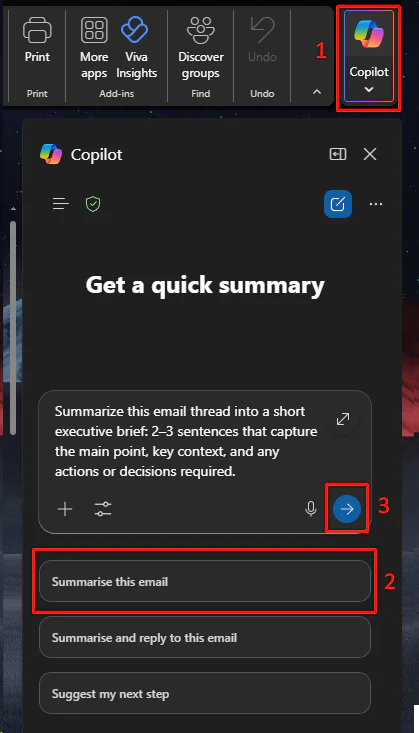
2 – Draft Replies (Without Sounding Robotic)
We’ve all been there – you need to respond to an email, but you end up staring at a blank screen for ages. One of the best uses for AI assistants is giving you somewhere to start.
Especially for emails, where you need to keep a professional tone, while delivering a clear message, you can’t just say exactly what you think!
Open up the email you’re responding to, and click “Summarise and reply to this email”
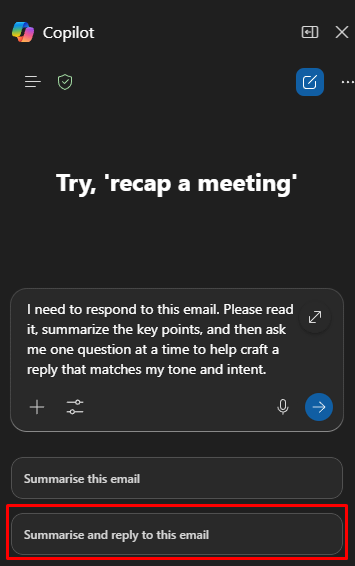
Copilot will then ask you a series of questions so you can provide more context, and start drafting the email for you!
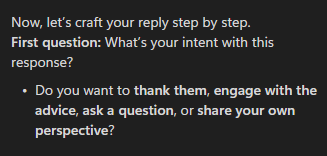
This is why Copilot is more of an assistant, if you don’t put precise and relevant information in, then the email it drafts will end up looking robotic. Make sure you edit it carefully before sending it anywhere! People will be very insulted if your email is clearly not written by you.
3 – Catching Up Quickly After Time Away
Here’s one straight from our Copilot Training courses! After taking some time off (even just a couple of days!) your inbox will quickly become absolutely rammed. When you get back, it’s going to be insanely time-consuming to tell what is important, what you need to respond to asap, and what can be ignored.
For people working in Finance Copilot is a great fit for this reason, they might get daily weekly and monthly reports, so any time off can make a real back log!
Copilot can quickly gather up all your emails in a specified time period, and give you a quick summary of each, as well as specifically highlight which ones it thinks need replies.
Use these 3 prompts, one after the other.
1 – “Summarise the emails I received in the last 7 days”
2 – “Which of these emails are urgent, and which can wait?”
3 – “From these emails, list any commitments, deadlines, or follow-ups I’m responsible for”
This will give you a great baseline to work from, and save hours of reading through emails.
Please note, Copilot will not always be correct on which emails need replies! Make sure to double-check based on the summaries.
Conclusion – Managing Your Email, Not Avoiding It
Copilot isn’t getting rid of email any time soon, but it is already making it much more manageable! Email is a huge part of corporate life, and such a time-consuming one.
Using Copilot properly helps you read emails faster, respond more clearly, and stay on top of what matters.
The goal here is not automating communication – it’s streamlining your processes to free up time for important tasks!

- Facebook: https://www.facebook.com/profile.php?id=100066814899655
- X (Twitter): https://twitter.com/AcuityTraining
- LinkedIn: https://www.linkedin.com/company/acuity-training/