

Excel’s IMAGE Function: Put Pictures Directly Into Your Cells
Contents
Managing a spreadsheet with product images, staff photos, or visual data has always been awkward.
You insert a picture, it floats over the cells, refuses to stay where you put it, and the moment anyone resizes a column the whole thing falls apart.
It’s been a problem in Excel for so long, that most of us just accepted it!
The IMAGE function changes that. It lets you pull an image directly into a cell as a formula, not a floating object – so it moves, sorts, and filters exactly like your data does.
It’s a great feature, but there are several things about it that will trip you up if nobody tells you first.
What the IMAGE Function Does
The IMAGE function inserts a picture into a cell by pointing Excel at an image URL.
The image lives inside the cell, which makes it great for managing your page layout and keeping things under control!
Without IMAGE, inserting pictures into a spreadsheet meant floating objects that had no relationship to the underlying data. IMAGE solves that.
The basic syntax is:
=IMAGE(source, [alt_text], [sizing], [height], [width])
Only the first argument is required. Everything else is optional.
| Argument | What it does |
|---|---|
| source | The HTTPS URL of the image – the only required argument |
| alt_text | Descriptive text for accessibility and use in dropdowns |
| sizing | Controls how the image fits the cell (0 = fit, 1 = fill, 2 = original size, 3 = custom) |
| height / width | Pixel dimensions – only used when sizing is set to 3 |
The default sizing (0) keeps the image’s aspect ratio intact and scales it to fit the cell, this is usually the best choice but play around with them!
When teaching this new function on our 2026 Excel courses in London, we’ve run into every issue you can imagine. Here are a few things you need to know before starting:
- HTTPS only – HTTP URLs will not work. The image must be hosted on a secure server.
- Supported formats include BMP, JPG/JPEG, GIF, TIFF, PNG, ICO, and WEBP (WEBP is not supported on Excel for Web or Android).
- M365 only – IMAGE requires Microsoft 365. It is not available in Excel 2019, 2021, or standalone Office licences.
The first time you use IMAGE in a workbook, Excel will show a #BLOCKED! error and prompt you to enable external content via a notification bar at the top of the screen.
Click Enable and the images will load. You only need to do this once per workbook.
A Practical Example: Building A Company Report
Let’s say you’re doing your monthly reporting, and want to include your companies’ logo.
Instead of dropping it above the cells and having to rearrange everything else, you can just drop it effortlessly into A1.
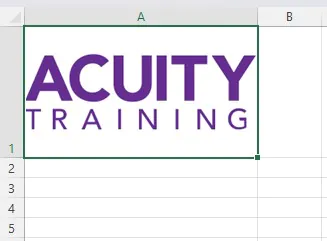
For our example, we’ll use the Acuity Training logo – so filling in the IMAGE function:
=IMAGE(“https://www.acuitytraining.co.uk/wp-content/uploads/2025/10/acuity-training.png”,”Acuity Training Logo”,0)
Breaking it down in very simple terms:
- “https://www.acuitytraining.co.uk/wp-content/uploads/2025/10/acuity-training.png” is where the image is hosted
- Acuity Training Logo is the alt text we are using for the image, so it explains what it is
- 0 tells Excel to fit the image to the cell while preserving its aspect ratio
From here, all we will do is resize the cell, and the logo appears perfectly:

Advanced Use: Dynamic Image Lookup with XLOOKUP
IMAGE is a simple function, but it can be used to great effect when combining it with lookup functions.
Imagine you’re in a sales team managing a product catalogue. You have a reference table with product names, unique IDs, descriptions, and image URLs.
For this example I’ll just use some kitchen items, and source the images from Amazon.

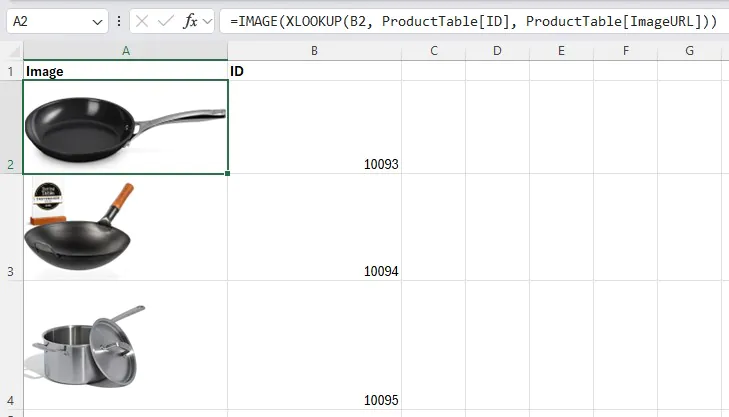
On a separate summary sheet, you want to show the product image for each ID.
If you combine it with XLOOKUP to pull the image URL across:
=IMAGE(XLOOKUP(B2, ProductTable[ID], ProductTable[ImageURL]))
Where:
- B2 contains the selected ID
- ProductTable[ID] is the lookup range
- ProductTable[ImageURL] is the column holding the image URLs
Then just drag it down, and the images will all pull across.
Common Errors We See Teaching IMAGE
Most guides will just leave it there – but we all know that things don’t always go to plan!
We teach Excel all year round, and these are the most common errors we work through with our delegates:
#NAME? – This is almost always a version issue, not a typo. IMAGE requires M365 – and if a colleague opens your file in Excel 2021 or an older licence, every IMAGE formula will break and show #NAME?.
#BLOCKED! – The workbook’s security settings are blocking external content. Look for the notification bar at the top of the screen and click Enable.
#CONNECT! – Excel can’t reach the image URL. This could be an internet connection issue, a VPN blocking the request, or the image host going offline.
💡 Trainer Insight – Image Refresh Issues
Where it starts to get a little technical, is when you don’t see a simple error message, but the image isn’t correct.
If the image they are using (like their company logo) gets updated, Excel keeps loading the old version.
The reason for this, is the moment IMAGE loads a picture, Excel caches a copy of it inside the XLSX file.
If the image at that URL later changes, Excel will still show the old version. The only reliable workaround is to add a version variable to the URL.
Store a version number in a separate cell (say, a date like 20250101) and concatenate it to the URL:
=IMAGE(CONCAT(A2,”?v=”,B2))
Change the value in B2 and Excel treats it as a new URL, fetching a fresh copy.
Final Thoughts
The IMAGE function is one of those Excel features that feels like it should have existed years ago.
Once you see a sortable, filterable table with images that actually stay in the right place, it’s hard to go back to floating pictures.
The limitations are real – M365 only, public URLs only, no PDF printing – but for the right use case, none of those are dealbreakers.
A staff directory, a product catalogue, a project tracker with status icons: these all work much better with IMAGE than without it.
The key is knowing the gotchas before you build something. Cache behaviour and SharePoint incompatibility have caught out more than a few people mid-project.
- Facebook: https://www.facebook.com/profile.php?id=100066814899655
- X (Twitter): https://twitter.com/AcuityTraining
- LinkedIn: https://www.linkedin.com/company/acuity-training/