

Copilot Studio – Building A Useful Meeting Agent
Contents
If you’ve been playing around with Copilot in Excel, Outlook, or Teams – you’ll know this:
It’s incredible at drafting and summarising…
But it doesn’t always do something practical.
Copilot Studio and agents is where that all changes. Instead of asking a question and getting an answer, you hand build an agent that can:
- Ask the right follow-up questions
- Use your organisation’s knowledge
- Output something structured
- And be deployed into real channels like Teams or a website
Even on the free trial, you can build and test these agents in the test chat panel.
So let’s build an agent that is genuinely useful, and not just something that looks flashy!
What Is Copilot Studio?
Copilot Studio is Microsoft’s tool for building agents – which are chat-based assistants. These agents come with:
- Topics (structured conversation flows)
- Variables (capturing and reusing information)
- Generative answers (grounded responses from knowledge sources)
- Publishing to channels once licensed (Teams, web, etc.)
These agents are designed to be simple to make without the need for data scientists or developers.
While there is a paid version, you can still create and test agents with the free version, which is all you need to follow on today.
So you can get a feel for agents, and how useful they might be without committing to anything!

Making A Meeting-to-Action Agent
This is what we recommend you to build as one of your “first agents”.
For context, every business ends up running into the same problem:
A meeting happens, things get missed, responsibilities are unclear, and work gets lost.
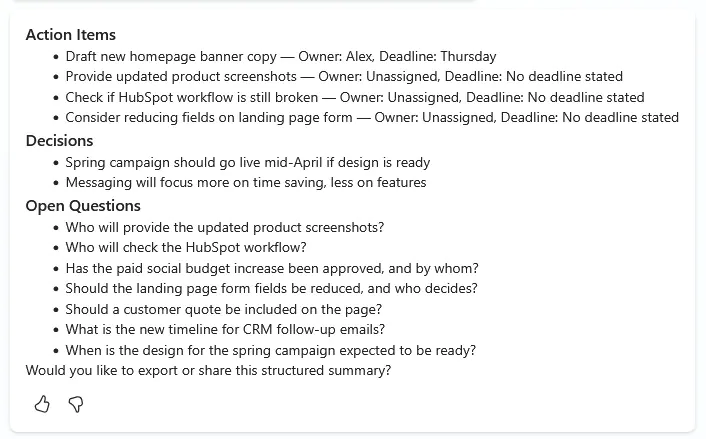
This agent, takes in your rough notes, and returns a clean summary – with defined actions and players.
We’ll also be customising ours to make it clear what decisions were made, if there were any open questions or information that is missing. Our bot will not be making blind assumptions!
💡 Trainer Insight – Scoping The First Agent
On our London Copilot courses, most people come in looking for something very ambitious.
An agent that handles all their companies meetings, and that needs very little supervision.
This usually goes wrong. The agents people tend to keep using are the narrow ones.
One input, one output, one clear job. The meeting-to-actions agent works because it just does one thing.
Once it works, you can add complexity – but not before.
An agent that handles all their companies meetings, and that needs very little supervision.
This usually goes wrong. The agents people tend to keep using are the narrow ones.
One input, one output, one clear job. The meeting-to-actions agent works because it just does one thing.
Once it works, you can add complexity – but not before.
Step 1 – Create Your Copilot Studio Account
Just head to Copilot studio, and sign up for an account – and you’ll be greeted with the interface:
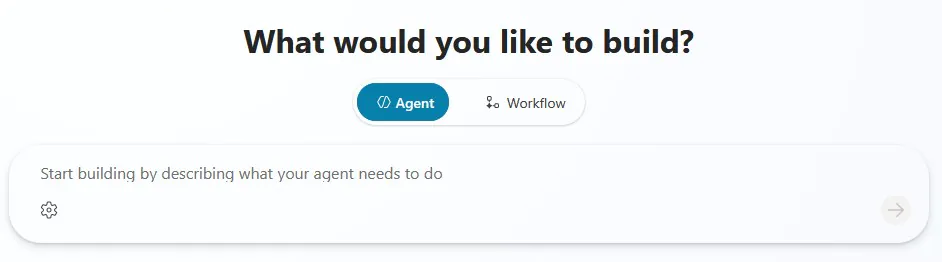
As we explained earlier, it’s meant to be as easy as possible to use, no need for coding!
Start by pasting in this set of instructions:
You turn meeting notes into structured outputs. You must not invent owners or deadlines. If they are missing, flag them as “Unassigned” or “No deadline stated”.
Output must be concise and formatted with headings and bullet points.
Always include “Open Questions” so the user can resolve ambiguity.
This “don’t invent” rule is important. AI loves filling gaps confidently.
After this, your agent will be created, and we can start customising it.
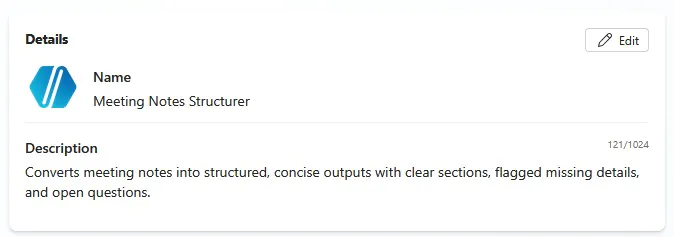
Step 2 – Create a Topic called “Meeting Notes To Actions”
Now, scroll down until you see this “Topics” window, and add a new topic.
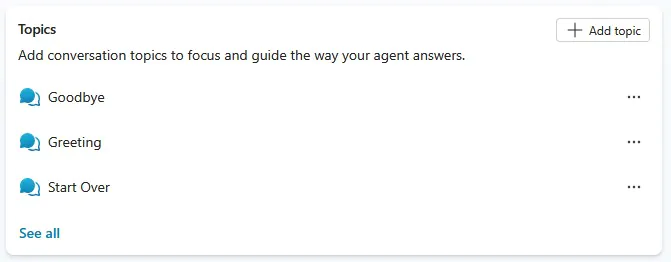
Here we are going to create the flow of our agent, and how it will behave.
Again, all we have to do is define in words what it’s meant to do.
For the name, just use “Meeting Notes to Action” and for the behaviour:
“Prompt a user to provide their meeting notes, then use Copilot to summarise those notes, create actions and owners, and write a follow-up email with this information”
And Copilot Studio will create a workflow that’s easy to understand and edit.
In this interface you can write exact text you want the agent to use in this process, as well as what triggers it, which is what we will start with.
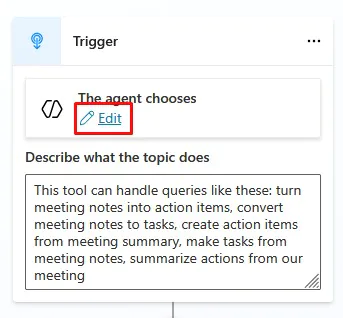
Hit edit, then and you’ll see the Condition Builder.
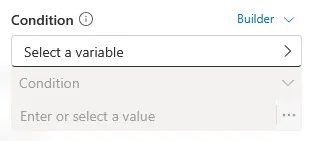
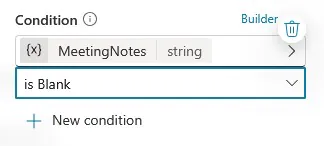
Click on the “MeetingNotes” variable which Copilot has created to store the meeting notes we provide. Pick “is Blank” for the condition – then just click save.
So the workflow we are creating, is when the agent has no meeting notes, it will initialize the workflow – that asks users for their notes.
Topics are the core building blocks in Copilot Studio, so play around with them! For an example, we can add a question at the start for what type of meeting took place, and adjust based on that.
Just click the circle between your first two nodes, and add a question:
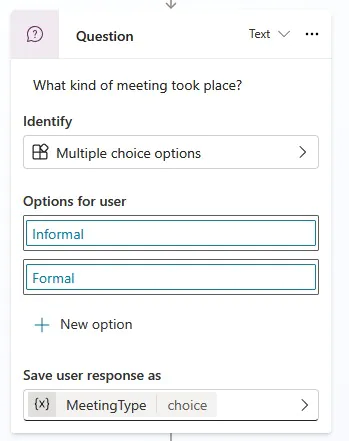
Then specify the options, and save the input in the “MeetingType” variable, and you can do whatever you like with it!
You could use it to just clarify the meeting type in the final output, or even change how Copilot approaches its summary with it.
Step 3 – Generating A Structured Output
Now we’ll look at the final “response” step that uses the variables and forces a consistent format. What we want to do here, is enforce a solid structure using variables.
Consistency is incredibly valuable for any business – if people get a different set of meeting notes each week, they’ll waste time picking out what matters.
Copilot will generate a pretty good summary for you, but here is ours with a few adjustments.
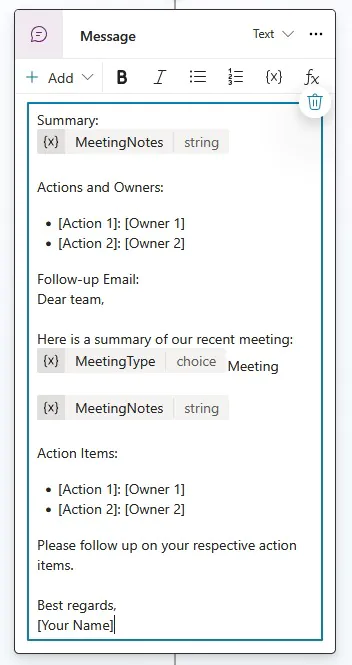
We made sure to include our variables, alongside a clear structure of actions and owners.
All that’s left to do is to save our progress and give it a go!
Step 4 – Testing Your Agent
Testing will be our final step here, so we can stick on the free version of Copilot Studio while still seeing its full capabilities.
Remember that Copilot does not replace decision-making, so you always want to check through what it’s doing and why.
Once you click save, the test window on the right-hand side of the screen will refresh.
Then just go into the chat, start the process by saying “I would like to structure the notes from a meeting”.
It will ask you what type of meeting it was like we defined earlier, then ask for the notes.
Upload a set and you’ll see the final output:
💡 Trainer Insight – Enforcing Structure
In training sessions, the big difference in what works and what doesn’t is usually the structure.
If you don’t force structure through decisions, actions and questions?
You get outputs that feel helpful, but don’t actually move anything forward.
This agent solves that by paying close attention to structure.
If you don’t force structure through decisions, actions and questions?
You get outputs that feel helpful, but don’t actually move anything forward.
This agent solves that by paying close attention to structure.
Final Thoughts – Where Copilot Studio Works Best
If you treat Copilot Studio like a chatbot builder, you’ll build something forgettable.
The best agents do something more specific:
- They turn messy inputs into structured outputs
- They ask the missing questions
- They don’t pretend uncertainty is certainty
- They produce an output you can actually paste into your workflow

- Facebook: https://www.facebook.com/profile.php?id=100066814899655
- X (Twitter): https://twitter.com/AcuityTraining
- LinkedIn: https://www.linkedin.com/company/acuity-training/