

Copilot In Microsoft Edge – Research Workflows
Contents
Most people know Copilot as the amazing assistant inside Excel or Teams.
What far fewer people use (or even know exists!) is Copilot built directly into the Edge browser itself.
For anyone whose job involves researching information, reading reports, comparing options, or pulling content from multiple sources:
This will be the best Copilot feature you ever use.
Let’s walk through exactly how it works and what a research workflow actually looks like when you use it properly.
What Copilot in Edge Actually Is
Copilot in Edge acts as an AI sidebar built straight into Microsoft’s browser.
Delegates on our City of London Copilot courses often tell us they use Copilot for all sorts of things, but don’t know about its Edge integration.
It sits alongside any page you’re viewing, and it can read the content of that page and respond to questions about it directly.
We know most people don’t use Edge for their primary browser, but it’s worth switching to it for research tasks just for Copilot.
The key difference between Copilot in Edge and just the Copilot App is context. When you’re in Edge, Copilot already knows what you’re looking at. You don’t need to paste content in, upload a document, or describe the page. You just ask.
This makes it particularly suited to research tasks -where the work isn’t generating content from scratch, but making sense of content that already exists.
Setting Up Copilot In Edge
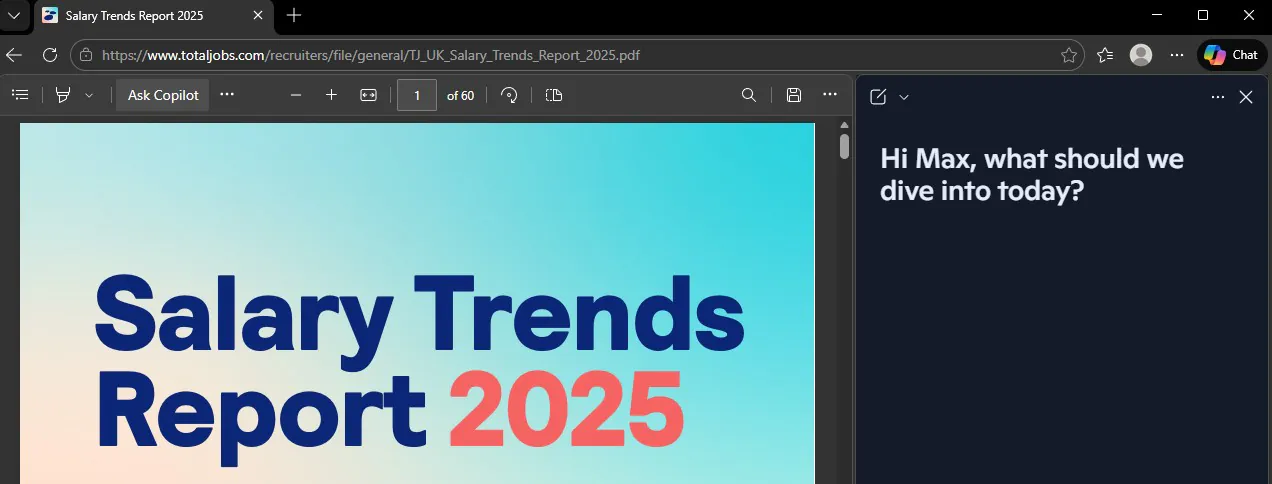
The sidebar is accessed through the Copilot icon in the upper-right corner of the Edge browser window (or press Ctrl + Shift + .).
The first time you use it for queries on a page, Edge will ask your permission to share page content with Copilot.
You need to allow this for the research features to work – without it, Copilot is essentially operating without context, which is going to be pretty useless!
If you’re using Edge with a work account (signed in via your Microsoft Entra ID / work profile), your interactions are covered by enterprise data protection.
This means prompts and responses are handled under your organisation’s data policies -a relevant consideration if you’re researching sensitive documents or internal reports.
To double-check you’re in the right mode, look for a small shield icon at the top of the Copilot pane. If it’s there, you’re operating with enterprise data protection active.
Summarise Without Leaving The Page
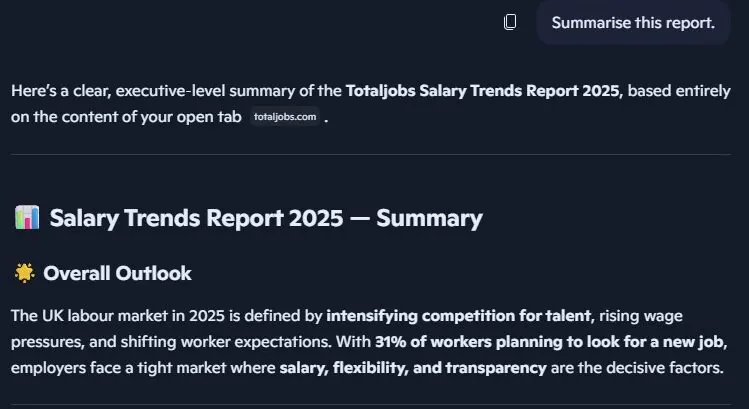
The most immediately useful thing Copilot can do in Edge is summarise a page you’re on – instantly, in the sidebar, without interrupting what you’re reading.
Open a report, a long article, or a PDF in Edge. Open the Copilot sidebar. Type: “Summarise this report.”
That’s it. Within seconds, you have a structured overview of the content, with key points extracted.
From our testing, Copilot works much better than ChatGPT for this.
You can then follow up: “What does this say about [specific topic]?” or “What conclusions do the author draw?”
The real value here isn’t speed, it’s selectivity. A research task rarely involves reading one source thoroughly – it involves scanning many sources and going deeper into the ones that matter. Copilot makes that dramatically faster.
Multi-Tab Research: Comparing Across Sources
This is where Copilot in Edge goes beyond what most people expect.
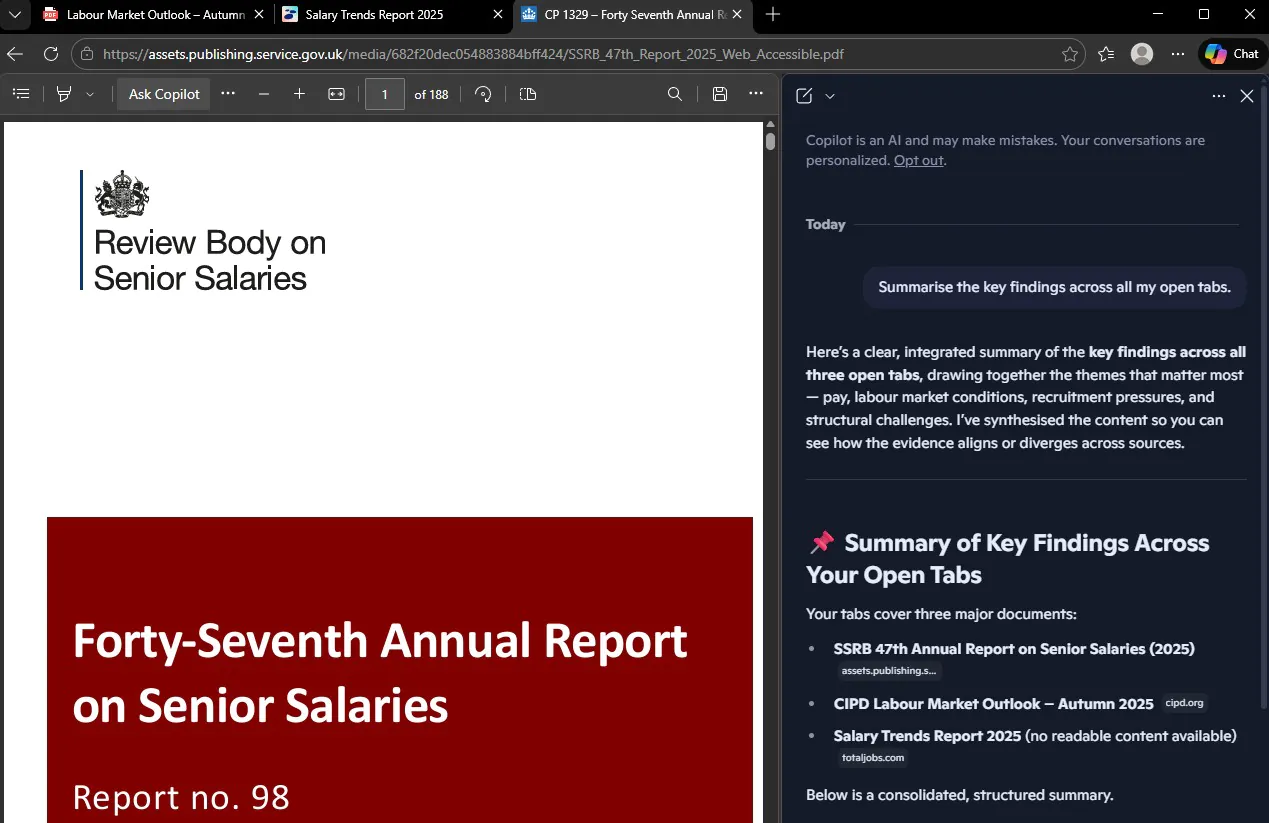
With Copilot Mode enabled, Copilot can access the content of all your open tabs at once, with your explicit permission. This is currently being rolled out, so you might have to wait a little before using it!
Instead of reading five articles one by one, you can open all five, then ask Copilot to combine them all.
Useful prompts for this:
- “I have several articles open about [topic]. What are the main points of agreement and disagreement between them?”
- “Summarise the key findings across all my open tabs.”
- “Which of these sources covers [specific aspect] most thoroughly?”
This multi-tab capability is the closest thing to having a research assistant who can read everything simultaneously. The output is a synthesised view rather than five separate summaries – which is far more useful for forming a position or writing a briefing.
From Our Training Rooms
Something we see very often in our Copilot training, is people using Copilot like they would a search engine. One question, one page, one answer at a time.
The shift happens when delegates realise Copilot in Edge is working with the entire session.
It remembers what you’ve asked before, so you can build on previous answers rather than starting fresh each time.
A delegate researching procurement policy options, for example, started asking general questions about frameworks, then asked Copilot to compare those frameworks against the specific constraints in a document she had open.
The sidebar treated the whole exchange as one connected conversation. That changed how she thought about the tool entirely.
The phrase we like to use is: “it’s like thinking out loud” because that’s actually what Copilot enables.
Asking Questions About PDFs and Reports
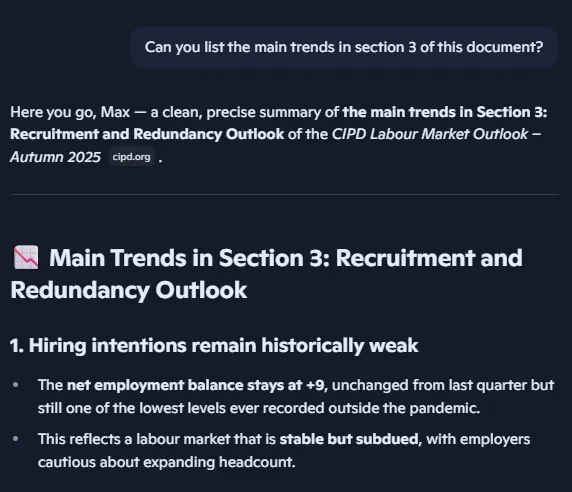
Copilot in Edge can also read PDFs opened directly in the browser, which makes it useful for anything from industry reports to supplier contracts to research papers.
Open a PDF in Edge (drag it into the browser or right-click > Open with > Microsoft Edge). Once it loads, open the Copilot sidebar and ask your question as normal.
Good prompts for PDF research:
- “What are the key recommendations in this document?”
- “What does this report say about [specific metric or topic]?”
- “Can you list the main risks identified in section 3?”
One practical note: very long PDFs can produce shallower summaries. If you’re working with a 50-page document, it’s more effective to ask specific, targeted questions rather than requesting a full overview. Copilot will give you more useful output when the question is narrower.
The Compose Feature: From Research to Draft
Once you’ve gathered what you need, Copilot in Edge also has a Compose feature in the sidebar. This lets you generate written content -briefing notes, email summaries, report sections – using the context of what you’ve just been researching.
Switch from the Chat tab to the Compose tab in the sidebar. Set the tone (Professional, Casual, Enthusiastic, Informational), the format (paragraph, email, ideas, blog post), and the length. Then give Copilot a brief instruction.
The useful application here is continuity: you’ve just spent time researching a topic in the browser, and Copilot has full context of what you were looking at. That means the output it generates is grounded in the actual sources you’ve been working with – not a generic response built from general knowledge alone.
For knowledge workers who regularly turn research into written deliverables – briefing notes, stakeholder updates, tender responses — this closes the gap between gathering information and using it.
What It Doesn’t Do Well
We don’t recommend any tools without giving a clear breakdown of its limitations, and Copilot can’t do everything! So here is what we found a little lacklustre.
It can’t read everything. Some pages behind logins, paywalled content, or certain document types may not be accessible to the sidebar. If Copilot returns a vague or generic answer when you expected a specific one, check whether it actually has access to the page content.
Summaries compress nuance. For anything with legal, financial, or compliance implications, summaries are a starting point – not a substitute for reading the source. Copilot will tell you the key points; it won’t necessarily flag the important footnote buried in section 7.
Multi-tab features are still rolling out. As of early 2026, full multi-tab reasoning is available in Copilot Mode in Edge, which may need to be enabled separately. Feature availability can vary by organisation, browser version, and licence type.
Building a Practical Research Workflow
Pulling this together into a repeatable process:
- Open your sources – articles, PDFs, reports – each in its own tab in Edge
- Activate the Copilot sidebar (Ctrl + Shift + .) and confirm page access is enabled
- Start with the active tab: ask for a summary, then ask targeted follow-up questions
- Switch to multi-tab mode if you need to synthesise across sources – ask comparative or aggregating questions
- Use Compose to turn your research into a draft deliverable directly in the sidebar
- Always verify key claims against the source before including them in anything formal
The habit that makes this work is treating Copilot as part of the research session, not a separate tool you switch to afterwards.
Keep the sidebar open throughout and build the conversation progressively – the context accumulates, and the later answers get better because of the earlier ones.

- Facebook: https://www.facebook.com/profile.php?id=100066814899655
- X (Twitter): https://twitter.com/AcuityTraining
- LinkedIn: https://www.linkedin.com/company/acuity-training/