

Copilot For Excel – Starter Guide
Contents
Microsoft Copilot is starting to become common with Excel users, everyone is talking about how much time you can save using it!
But if you’re already a confident Excel user, is it really that useful?
The short answer is: Copilot is incredible for any level of Excel user, as long as you know what it’s good at, and how to work with it.
This starter guide explains how Copilot can help you add value, and gives simple practical ways to get started.
Why Copilot Is Useful In Excel
Excel is powerful, but in an organisation especially it can have a few pain points with users. For example:
- Working with big spreadsheets you didn’t create
- Complex formulas written by coworkers
- Time pressure to get an answer from data
As we teach on our Copilot training, its best use is as a translator and accelerator, not a replacement for Excel skills. It’s great for explaining what formulas do, suggesting approaches when you are unsure where to start, and helping explore the data without doing manual analysis.
What it doesn’t do well? Copilot isn’t for everything, it won’t magically fix all your messy data, or be able to make clear decisions from it. So where should we get started?

1 – Using Copilot To Explain Existing Formulas
We think the best entry point for Copilot in Excel is helping explain existing formulas that you didn’t build.
For example, imagine you open a file and see a long nested formula. You can see that it’s working, but you don’t understand how or why. Just upload the file into Copilot, and ask it!
Copilot will break down the formula piece by piece, explain what each function does, and help you understand the overall logic at play.
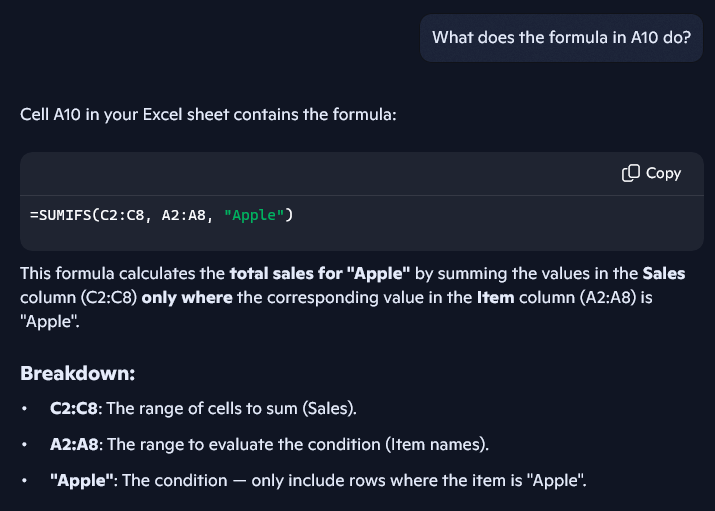
This is a great way to reduce some of that friction that comes with working in Excel as a team.
Pro Tip: If a formula looks very long and complex, try the following query.
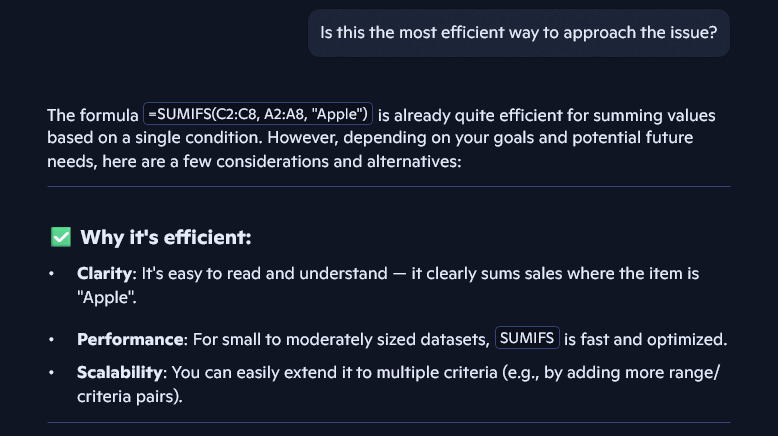
You can get clear efficiency tips as well as your breakdown, which can help you when it comes to suggesting alternatives to the person that made the sheet initially!
2 – Generate Starter Formulas (Then Refine Them!)
Copilot isn’t always perfect when it comes to writing formulas, but it is really good for getting you started.
If you know what you want to calculate, but are unsure which function to use, how to structure the formula and just where to begin in general – Copilot is a great assistant.
Describe the outcome you are looking for in as clear terms as possible, and Copilot will suggest a formula. Add as much context as you can making references to the actual data at hand, if you don’t then it can’t do its job properly.
Weak Prompt Example: “Create a formula to total big Apple sales.”
Strong Prompt Example: “Suggest an Excel formula to sum Sales where Item is Apple and Quantity is greater than 5”
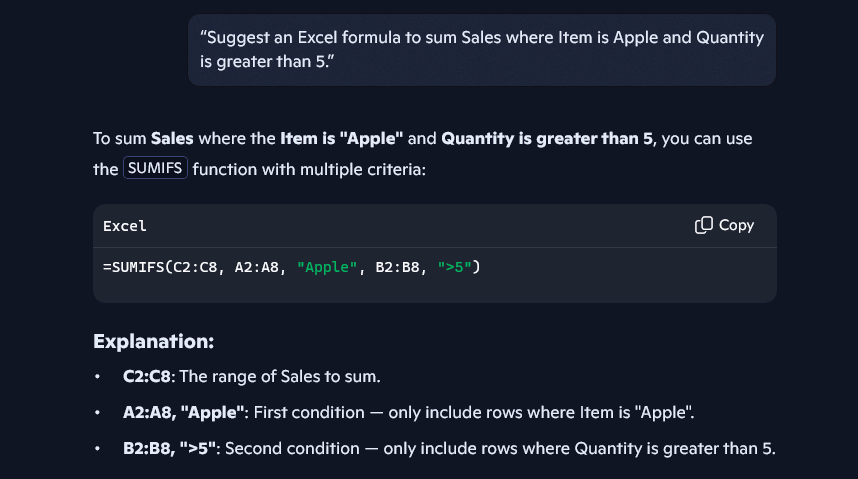
Remember! This should always be treated as a starting point, not a final answer. You need to test the formula, making sure it works as intended and it may need adjustments. Copilot helps you work faster, but you still need to understand Excel properly.
3 – Explore And Summarising Data
Our final recommendation and a powerful use case for Copilot in Excel is early-stage data exploration.
As an analyst, you’ll constantly be given new datasets and be asked questions like:
- What stands out?
- Are there any obvious trends?
- Where should we focus?
Before creating charts and pivot tables, you often just need a good feel for the data. Copilot can summarise what’s in a table, highlight possible patterns, and suggest areas for you to investigate.
This is great when working with Copilot and Financial data, it doesn’t replace your thinking, but gives you somewhere to start from!
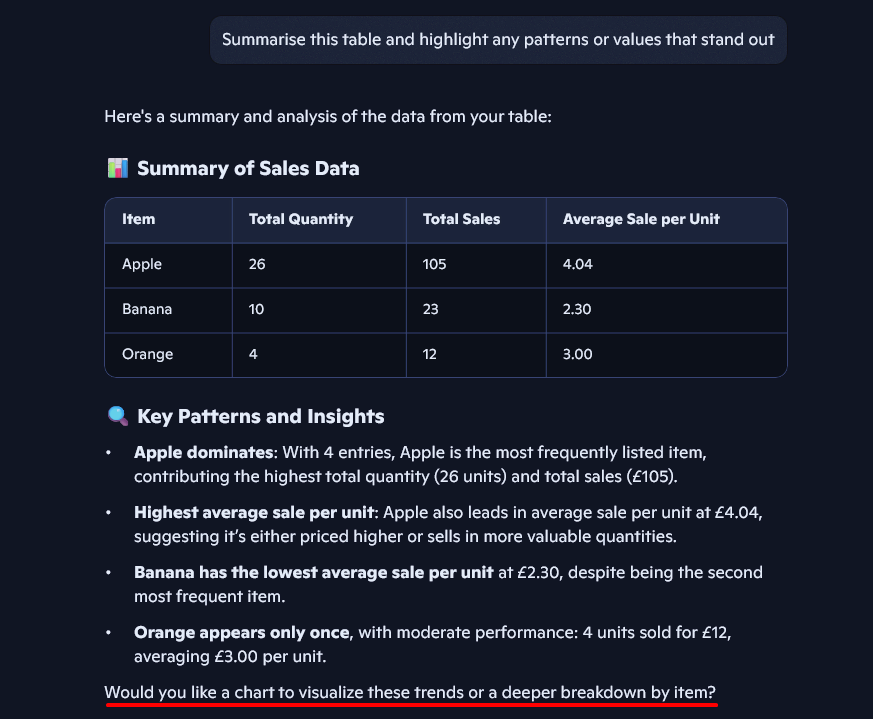
Pay special attention to the last line! Copilot will often start pointing you in the next direction, but make sure this is actually what you want to do before agreeing.
Especially when it comes to bigger datasets, this is an amazing functionality of Copilot.
Conclusion – Using Copilot To Work Faster
Copilot doesn’t turn beginners into experts overnight, and it’s useless without proper Excel skills.
However, when used correctly, it can be a great tool, and an incredible AI assistant.
As a company that has been teaching Excel for years, we think the best use for it is speeding up common tasks, helping users get up to date with tables quickly and giving them a starting point for writing formulas.

- Facebook: https://www.facebook.com/profile.php?id=100066814899655
- X (Twitter): https://twitter.com/AcuityTraining
- LinkedIn: https://www.linkedin.com/company/acuity-training/