

Excel’s LET Function: The Secret Juice In Excel
Contents
Excel formulas can get complicated quickly.
A simple calculation can quickly turn into multiple steps, and pretty soon you’ll be repeating the same logic again and again to get a final result.
The LET function allows you to assign names to calculations inside a formula, making complex formulas easier to read and manage.
Instead of repeating the same calculation multiple times, you just define it once – and reuse it within the formula.
This improves:
- Clarity
- Efficiency
- Performance
LET Function Syntax
Technically speaking, the LET Function stores values inside of a formula, then uses them in a final calculation.
The structure looks like this:
=LET(name1,value1,[name2/value2],…,result)
- name1 – The first name to assign (must begin with a letter!)
- value1 – The value or calculation to assign to that name
- name2/value2 – Second name and value, written as a pair of arguments (optional)
- result – A calculation or variable that was previously calculated
This is one of our personal favourites, and a big part of our Excel Workshops in and around London! Think of it like creating variables in a formula, and then producing the final answer.
Simple Example – LET In A Sales Role
Let’s imagine you’re working in a sales team.
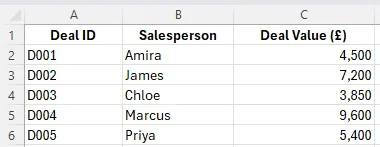
You have this data, a set of deals with a unique ID, a salesperson assigned, and their raw value.
Type in the following formula in D2 and drag it down:
=LET(DealValue, C2, Commission, DealValue*0.08, Bonus, 250, Commission+Bonus)
We are assigning the deal value to a variable, then multiplying it by 0.08 to get the Commission, then also adding a flat bonus of 250.
And just like that, you suddenly have easy, repeatable variables to use for whatever you need!
Without it, you’ll have to keep rebuilding things every time, a very common bad habit in Excel users.
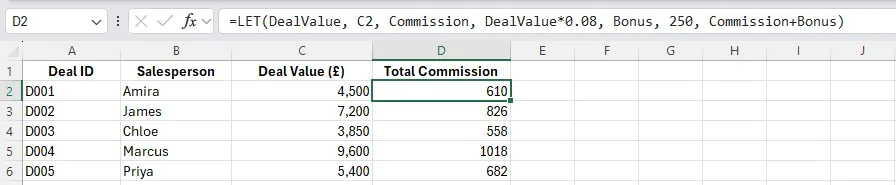
In this example, we created three named variables. DealValue, Commission and Bonus.
And you could keep expanding on this by using them for other calculations, or including new variables!
Advanced Example – Using LET In Finance
Now let’s look at a more realistic financial setting.
You are building a monthly performance calculation, this is our data set:
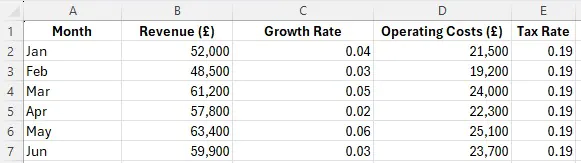
And from this data, you need to:
- Apply growth to revenue
- Subtract costs
- Apply tax
- Return final profit
Since we are using LET, we can do it all in one function!
This time, we’ll break it up line by line so you can see the steps. Creating variables, and using them in calculations.
=LET(
Revenue, A2,
GrowthRate, B2,
AdjustedRevenue, Revenue*(1+GrowthRate),
OperatingCosts, C2,
ProfitBeforeTax, AdjustedRevenue-OperatingCosts,
TaxRate, D2,
ProfitBeforeTax*(1-TaxRate))
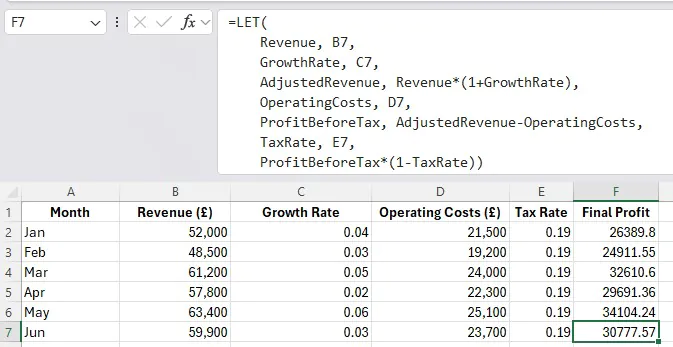
This function might look a little intimidating, so just take it step by step.
It creates variables for each part we need in the calculations, and then uses them.
Our advice? Break down the initial task list step by step, and start deciding what will need a variable.
The Side Of LET Most People Won’t Tell You
LET is often introduced as a way to make formulas cleaner – and that is true!
But in real workplaces, the biggest value is actually that it makes formulas easier for your coworkers to troubleshoot, review and hand over.
This really matters because your Excel work is never done in isolation. People have to check things, edit them, reuse them and update them. When you or a coworker comes back to your sheet, you won’t remember the logic you used to build it.
When you name parts of your logic (like our Adjusted Revenue or ProfitBeforeTax), you aren’t just blindly referencing cells – you are documenting your thinking inside the formula.
It becomes so much easier to:
- Understand what each step is doing
- Isolate where a result starts going wrong
- Come back later and change the logic safely
In other words, LET is not just about writing a better formula here and now, it’s about making that formula easier to work with later.
💡 Trainer Insight
A very common pattern we see in our Excel training is that people discover LET, and immediately
try and replace every helper column with one “smart” formula. However, when you are working
with people less experienced in Excel, this isn’t the best solution. It looks advanced, but it often
creates a workbook that is harder to test and harder for colleagues to maintain.
Conclusion
The LET Function isn’t just a way to write cleaner formulas – it’s a way to build formulas that are easier to manage and work with in real work.
It can absolutely improve readability and reduce repeated calculations. But the biggest benefit appears:
- When you need to debug a formula
- When the logic expands
- When someone else has to review your workbook
And that is why LET is so useful for intermediate and advanced Excel users.
- Facebook: https://www.facebook.com/profile.php?id=100066814899655
- X (Twitter): https://twitter.com/AcuityTraining
- LinkedIn: https://www.linkedin.com/company/acuity-training/