
Excel Training London & Online
Become a faster, more efficient Excel user. Improve your data analysis, learn formulas and functions, and boost your career with our expert-led training.
We offer a range of beginner, intermediate & advanced Excel courses that are CPD certified with 6 months post-training support.
Our small, London based courses include lots of hands-on practice and allow plenty of time for questions and personal attention from the trainer.
We provide Excel training London and UK-wide as well as online and at client sites.
Rated: Exceptional since 2013
Over 1,500 external reviews

-
 Microsoft Partner-Learn with experts
 -
 CPD Certified-Validated by specialists
 -
 Rated Outstanding-14 years in a row
 -
 Moneyback Guarantee-100% Peace of mind

Our Excel Courses
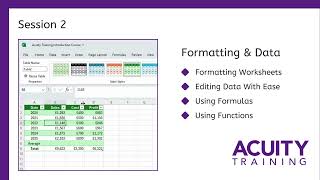
Get started with Excel

Introduction Excel Course
CPD Certified
4.8 / 5
1 day.
Client Site Courses Available.
Online, London & Guildford.
For complete beginners, this CPD certified course covers all the basics of Excel in one day.
- Navigating Excel & workbooks
- Inputting data & using dates
- Cell referencing & formulas
- Using fonts, colours & borders
- Printing & formatting your sheet
- Linking your data together
For complete beginners, this CPD certified course covers all the basics of Excel in one day.
-
Navigating Excel & workbooks
-
Inputting data & using dates
-
Cell referencing & formulas
-
Using fonts, colours & borders
-
Printing & formatting your sheet
-
Linking your data together
By the end of this session you’ll know exactly where everything is and be ready to dive in.
- Finding your way around Excel and understanding how workbooks are organised
- Entering text, numbers and dates correctly
- Writing your first formulas and understanding cell references
- Selecting and working with ranges
- Editing and undoing mistakes without losing your work
The habits you build here save time every day – preventing the mistakes that catch most users out.
- Saving your work safely on your network and via OneDrive
- Collaborating on shared workbooks and tracking changes
- Filling data quickly across rows and columns
- Writing reliable formulas and fixing the most common errors
Turn a wall of numbers into something clear, consistent and ready to share with a manager or client.
- Using fonts, colours and shading to highlight what matters
- Formatting numbers so dates, currencies and decimals display correctly
- Adding and removing borders to create clean, structured layouts
The practical finishing touches that make a spreadsheet complete rather than just functional.
- Adding, removing and rearranging rows, columns and cells without breaking your data
- Working across multiple sheets and keeping your workbook organised
- Setting up print areas, margins and page layouts so everything looks right on paper

Become a confident and capable Excel user
Intermediate Excel Course
CPD Certified
4.85 / 5
1 day.
Client Site Courses Available.
Online, London & Guildford.
This one day CPD certified Excel intermediate course will make you a faster, more confident Excel user.
- Creating & formatting charts
- Using conditional formatting
- Intermediate-level formulas
- Creating & filtering data tables
- Linking data between spreadsheets
- Time-savings tips and tricks
This one day CPD certified Excel intermediate course will make you a faster, more confident Excel user.
-
Creating & formatting charts
-
Using conditional formatting
-
Intermediate-level formulas
-
Creating & filtering data tables
-
Linking data between spreadsheets
-
Time-savings tips and tricks
 Download full course details
Below is the typical timetable for this training course, although exact timings vary between training course.
Stop copying and pasting between tabs – let Excel pull the data for you automatically.
- Renaming, reorganising and managing multiple worksheets
- Linking data between sheets so it updates automatically
- Using COUNT and SUM variations to answer questions about your data quickly
- Combining text from separate cells into one
Build charts that communicate clearly, not just charts that exist.
- Choosing the right chart type and creating it in a few clicks
- Adding axes, titles, legends and gridlines so your chart tells a clear story
- Printing charts cleanly alongside your spreadsheet data
If you spend time manually sorting or formatting data, this session will help get that time back.
- Using paste options to bring across only what you need – values, formulas or links
- Sorting and filtering data to find what matters and hide what doesn’t
- Saving custom views so you can switch between perspectives without reformatting
Make your data easier to understand at a glance and let Excel do more of the analysis work.
- Using conditional formatting to make important values and trends stand out visually
- Adding data bars, colour scales and sparklines, so patterns are immediately obvious
- Converting data into a proper Excel table for faster filtering, formatting and formulas
- Using the Quick Analysis tool to generate charts and totals in seconds
Combined Excel Course (Save £55)
CPD Certified
4.86 / 5
2 days.
Client Site Courses Available.
Online, London & Guildford.
Save £55 when you book our Introduction and Intermediate Excel courses at the same time.
This 2 day CPD-certified course is the fastest way to go from complete beginner to confident Excel user.
Save £55 when you book our Introduction and Intermediate Excel courses at the same time.
This 2 day CPD-certified course is the fastest way to go from complete beginner to confident Excel user.
For the detailed syllabus of our introduction and intermediate Excel courses please see the individual courses above.

PivotTables, Advanced Formulas and more
Advanced Excel Course
CPD Certified
4.9 / 5
2 days.
Client Site Courses Available.
Online, London & Guildford.
Become an Excel power user on this 2 day CPD certified course, mastering Excel’s most powerful tools.
- Using logical functions
- VLOOKUP, HLOOKUP & INDEX
- Creating & editing Pivot Tables
- Importing & exporting data
- Automating with macros
- Using Solver & data controls
Become an Excel power user on this 2 day CPD certified course, mastering Excel’s most powerful tools.
-
Using logical functions
-
VLOOKUP, HLOOKUP & INDEX
-
Creating & editing Pivot Tables
-
Importing & exporting data
-
Automating with macros
-
Using Solver & data controls
Download full course details
Click below to see the detailed course syllabus.
Named ranges and logical functions make your spreadsheets easy for everyone to use.
- Managing named ranges so they stay accurate as your data changes
- Using IF to return different results based on conditions, with both text and numbers
- Nesting IF functions to handle multiple conditions in a single formula
- Using AND, OR, NOT and IFERROR to handle exceptions cleanly
Data entered in the wrong format and lookups that don’t work are Excel’s most common problems.
We tackle both – controlling what goes into your spreadsheet, then building reliable lookup functions.
- Setting rules that only allow valid data to be entered
- Using formulas as validation criteria for more sophisticated controls
- Identifying and highlighting data that doesn’t meet your standards
- Using XLOOKUP and INDEX MATCH to retrieve data from large tables accurately
- Using OFFSET, INDIRECT and other reference functions to build dynamic formulas
- Creating outlines to collapse and expand sections of large spreadsheets
PivotTables let you summarise large datasets in minutes without writing a single formula.
Add what-if analysis and Excel starts being a tool you make decisions with.
- Building PivotTables from scratch and reshaping them to answer different questions about your data
- Using slicers to filter your PivotTable interactively, making it easy for others to explore the data
- Consolidating data from multiple sources and layouts into a single summary
- Using Solver to find the optimal solution when working with complex conditions
A lot of real-world Excel work involves messy data exports and repetitive tasks.
Both get solved here – pulling in data cleanly and building macros to handle repetitive actions.
- Importing data from different file types and external sources without manual reformatting
- Keeping imported data connected to its source so it refreshes automatically
- Recording macros that capture your actions and replay them instantly
- Opening and editing the macro code so you can make adjustments and fix problems

Learn how to automate your work
Excel VBA Course
CPD Certified
4.92 / 5
2 days.
Client Site Courses Available.
Online, London & Guildford.
Take control of Excel using VBA to create your own code and procedures on this CPD certified course.
- The object model & key concepts
- Programming techniques
- Procedures & user-defined functions
- Custom forms including controls
- Starting procedures automatically
- Handling errors
Take control of Excel using VBA to create your own code and procedures on this CPD certified course.
-
The object model & key concepts
-
Programming techniques
-
Procedures & user-defined functions
-
Custom forms including controls
-
Starting procedures automatically
-
Handling errors
Download full course details
This is a hands-on course, you will be writing VBA code on both days of the course. The exact timing of segments on individual courses may vary.
Macros are the fastest way into VBA – they let you capture and reuse real actions in Excel.
We’ll also get you comfortable in the VBA editor, which is where all your code will live.
- Getting comfortable in the VBA editor and understanding what each part of the screen does
- Understanding the Excel object model: how workbooks, sheets, ranges and cells work in code
- Stepping through code line by line and setting breakpoints so you can test and debug efficiently
- What macros are, where they’re stored, and how to keep them safe and accessible
- Recording, running and editing macros so you can capture a process and refine it
- Using relative cell references in macros so they work on any row, not just the one you recorded
Then you’ll move on to writing procedures from scratch and getting the most out of VBA.
This session covers the two foundations that make everything else possible.
- Understanding how procedures work and how to organise them in your project
- Using IntelliSense and code comments to write cleaner, more readable code
- Declaring and using variables to store values your code needs to work with
- Passing variables between procedures, so your code is modular and reusable
Real automation involves decisions: doing different things depending on your data.
This session also shows you how to build your own functions that work inside Excel.
- Using MsgBox to communicate with users while your code runs
- Writing IF statements that handle single and multiple conditions
- Using Select Case to handle situations with many possible outcomes cleanly
- Writing functions that accept inputs and return calculated results, just like VLOOKUP or SUM
- Building a function library you can import into any workbook that needs it
- Working with Range objects, so your code can read and write to any cell or selection
Custom forms let you build proper, controlled interfaces on top of your spreadsheets.
This session also covers error handling, which lets you builds code that works no matter what.
- Designing a custom UserForm with labels, text boxes and other controls
- Controlling the properties of each element, so your form behaves exactly as intended
- Adding option buttons and checkboxes for multiple-choice inputs
- Setting up procedures that run automatically when a workbook opens or an event occurs
- Understanding the different types of errors VBA can encounter and how to handle them
- Using error trapping and the Resume statement so your code recovers gracefully from problems

Get comfortable with powerful tools
Excel Power Tools Course
CPD Certified
4.78 / 5
2 days.
Client Site Courses Available.
Online, London & Guildford.
Learn to use Excel’s Power Tools for business intelligence and data analysis on this 2 day course.
- Power Tools: Query, Pivot & Maps
- Importing data
- Transforming & preparing data
- Data models, measures, fields
- Slicers, Pivot Charts & visualisation
- Introduction to Power BI
Learn to use Excel’s Power Tools for business intelligence and data analysis on this 2 day course.
-
Power Tools: Query, Pivot & Maps
-
Importing data
-
Transforming & preparing data
-
Data models, measures, fields
-
Slicers, Pivot Charts & visualisation
-
Introduction to Power BI
This session covers the core BI concepts, and gets your data into Power Query ready to work with.
- Understanding what Business Intelligence is
- How Power Query, Power Pivot & Power BI Desktop fit together
- Understanding what a query is and how ETL works in practice
- Importing data from CSV, text and Excel files so it lands cleanly
- Creating and editing a simple query to see how Power Query works
Raw data never comes in ready to use.
- Learn how to clean and reshape it – and build queries that always hold up.
- What is BI – the main concepts
- What is Power Query, Power Pivot & Power BI Desktop
- Importing from CSV, text and Excel files
- Working with other data sources
- Metadata and file content queries
- Different data analysis techniques
Power Query gets your data clean – Power Pivot is where you start to analyse it.
- Understanding what Power Pivot is and how it works
- Seeing how PivotTables built from a data model are different
- Bringing Excel tables and data ranged into Power Pivot
- Identifying key fields and using them to create reliable relationships
- Setting up hierarchies in your data model so it reflects your data
This session covers how to add calculation that answer real business questions.
Then we show how to present those answers clearly – in Excel and Power BI.
- Understanding the two types of calculation in Power Pivot
- Creating calculated columns to add row-level data
- Setting up a date table to use time intelligence functions
- Applying dashboard and report principles
- Creating and formatting Power Pivot charts

Microsoft Excel With Copilot
CPD Certified
4.89 / 5
1 day.
Client Site Courses Available.
Speed up your Excel work with AI with this hands-on course.
- Using Copilot to Build Formulas
- Summarising & Analysing datasets
- Automating repetitive work
- Generating and fixing formulas
- Cleaning and transforming data
- Applying Copilot to PivotTables
Speed up your Excel work with AI with this hands-on course.
-
Using Copilot to Build Formulas
-
Summarising & Analysing datasets
-
Automating repetitive work
-
Generating and fixing formulas
-
Cleaning and transforming data
-
Applying Copilot to PivotTables
Copilot can save you a lot of time in Excel if you know how to use it. This session will give you that confidence.
- Setting up and navigating Copilot in Excel
- Writing prompts that get accurate, useful results
- Using Copilot to build formulas, including the COPILOT function
- Generating charts and graphs from plain English instructions
Then we will dig into the nitty-gritty of using Copilot with Excel, helping you analyse data and create formulas.
- Asking Copilot questions about your data to surface patterns and summaries
- Generating PivotTables automatically and asking Copilot to explain what they show
- Writing, fixing and building multistep formulas using plain English descriptions
Data cleaning is one of the most time-consuming problems in Excel – Copilot can take care of it for you.
- Removing duplicates, standardising formats and splitting fields using prompts alone
- Working through a hands-on exercise cleaning a realistic messy dataset
- Applying Copilot to PivotTables, forecasting and large datasets
- Sharing workbooks with Copilot features intact and collaborating with tracked changes
Easy booking & payment
Money back guarantee
Post-course support
Excel Training FAQs
For General FAQs and Booking questions, see our FAQ Page.
Not sure which course is right for you? Our Excel course level adviser takes less than 60 seconds, or give us a call – we’re happy to help.
Introduction – No experience needed. This course starts from scratch and covres navigating Excel, entering data, basic formulas and formatting.
Intermediate – You’ll need a basic working knowledge of Excel: AutoFill, AutoSum, simple formulas, absolute cell references and basic formatting.
Advanced – You should be a confident everyday Excel user, comfortable with formulas, functions, absolute cell references and sorting and filtering.
Excel with Copilot – No Copilot or AI experience needed, but you’ll need Intermediate-level Excel knowledge as a starting point.
VBA – Advanced Excel knowledge is required, but no VBA or macro experience at all. You’ll be writing your own code from day one.
Power Tools – No prior experience with Power Tools needed. You should be comfortable with IF and Lookup functions, Defined Names, importing data and basic PivotTables.
Our in-person courses in London and online courses have both been carefully designed, with special attention to each format.
Whichever is more convenient and effective for you, is usually the right choice.
We tend to advise if people are really unsure to attend the London courses, as it gives just a little bit more interaction with our expert trainers.
Most self-taught people find Excel slow and frustrating to work with. Not having an overall understanding of Excel’s underlying logic means that their spreadsheets are prone to errors and require frequent reworking and manual workarounds.
Our introduction course focuses on the foundations. Understanding basic Excel best-practice and its underlying logic means that it ‘makes sense’, making errors easy to avoid and simple to fix if you come across one.
We think so! For people that already use Excel, but have these issues – we usually recommend our Intermediate course.
It is designed for existing Excel users who are spending lots of time carrying out tasks like data cleaning and cell formatting manually, and frustrated that their Excel skills make using it so slow.
It teaches you how to become a much faster Excel user by automating tasks using straight forward formulas and tools.
We are advocates for AI use and believe that it is an incredibly powerful tool when working with Excel. However, making the most of AI when working with Excel makes advanced skills more necessary, not less, as AI still has some way to go.
AI’s solutions are often convoluted, and it’s not uncommon for them to be wrong for more complex tasks.
An advanced understanding of Excel means that you can be confident that AI’s answers are correct. By quickly auditing and deconstructing its solutions you will know that your formulas are doing exactly what you want them to.
Both our London and Online classes are kept small to avoid this exact problem. Our classes average 4 people.
Small classes ensure our trainers have plenty of time to answer your questions in real-time rather than having to ask you to wait for a break, by which time you will have fallen behind.
The “Monday morning problem” is why we give you the exercises that you use during the course. In conjunction with the course manual, they allow you to go through what you were taught during the training afterwards, if you can’t quite remember it.
Additionally, we offer 6 months of post-course support. Send us an email, ideally with screenshots, explaining where you are stuck, and your trainer will come back as soon as possible to help you out.
Updating and rebuilding legacy spreadsheets created by previous colleagues can be a significant problem. Over time complicated, inflexible “black box spreadsheets” become increasingly prone to breaking because no-one fully understands them and need to be recreated.
Our advanced course covers useful techniques for this situation like different data validation techniques, ways to link data dynamically and naming cells and ranges to make formulas easier to understand.
In short yes even before allowing for the fact that using Excel will become a less stressful, annoying experience.
In most offices Excel is everywhere so you will be using it multiple times a day. Even a small saving of time each time you open Excel will very quickly ‘repay’ the time spent training even before allowing for the larger chunks of time that are saved by automating repetitive tasks and fixing errors.
All our Excel courses are taught using standard Microsoft 365 business licences.
If you use Microsoft 365 you will be on the same version of Excel as the trainer automatically.
We teach defensive implementation of Excel which is designed for this.
Mastering Excel’s advanced tools lets you create spreadsheets that are simpler for end-users to use. Over time fixing problems using structured references, protected cells and similar techniques will reduce your workload because the volume of requests for help will reduce.
Very probably.
We are very conscious of being fair to everyone that attends one of our courses and focus on covering the standard material.
However, where possible, we will spend more time on specific areas that delegates would like to cover.
To allow for this we ask everyone attending one of our courses to complete a very quick ‘pre-course questionnaire’. It means that we understand more about who you are and what you are looking for from your course.
Yes. We frequently run courses at our clients’ offices.
Where Are Your London Excel Courses Held?
London Training Venue & Course Details
44 Southampton Buildings
London, WC2A 1AP
Tel: 0203 603 0150
London, WC2A 1AP
Tel: 0203 603 0150
See the full London location details here.
Online Excel Courses
We run a full schedule of interactive online courses over Zoom.
We also deliver private Excel courses over Teams, if requested.
What Do Other Delegates Say About Your Excel Courses?
Getting To Know You Before Your Course
Please let us know where your Excel skills are currently and what you want to get from your course.
That way we can make sure the trainer knows when planning your course.
Please give us as much detail as possible.
Pre-Course Questionnaire: Excel Courses ->
- Facebook: https://www.facebook.com/profile.php?id=100066814899655
- X (Twitter): https://twitter.com/AcuityTraining
- LinkedIn: https://www.linkedin.com/company/acuity-training/