

Power Query in Excel for the Web: What’s Changed
For years, Power Query was one of the main reasons Excel users couldn’t fully move their work to their browsers.
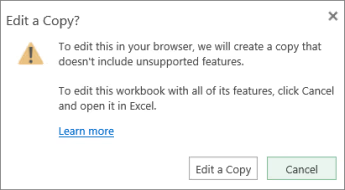
You could view query results in Excel for the web, but if you needed to actually build or edit a query you had to open the desktop app, so people just kept defaulting to it.
That changed in January 2026! Microsoft made the full Power Query experience globally available in Excel for the web, including the import wizard and the Power Query Editor itself.
For teams working across devices or relying on SharePoint-hosted workbooks, this is a big deal.
This article is for Excel users who already know what Power Query does and want to understand exactly what the web version now supports, where it still falls short of the desktop, and what this means in practice.
What Was Missing Before
So Power Query was actually always in Excel for the web, but it was a half built functionality.
You could open a workbook containing Power Query connections and see the loaded data. In some cases, from late 2025, you could even refresh certain authenticated queries.
But if you needed to touch the query itself – edit a step, add a transformation, connect to a new source – you hit a wall. The Power Query Editor simply wasn’t available in the browser.
While it might just sound a bit annoying, it’s actually a pretty big deal. Essentially, if one person owned the Power Query setup on their desktop, no one else could maintain it without the desktop app.
If a query broke, fixing it required opening the file locally. For teams sharing workbooks on SharePoint or using lightweight devices, this made a huge bottleneck.
What’s Available Now
As of January 2026, Microsoft 365 Business and Enterprise subscribers can use the full Power Query workflow entirely in the browser:
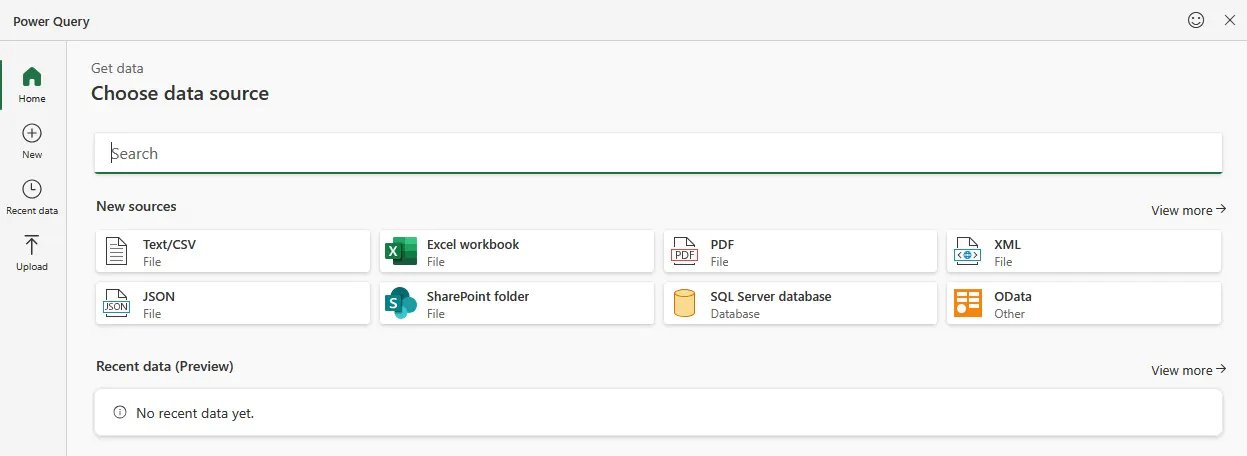
- Get Data: import from Excel workbooks, Text/CSV, XML, JSON, SQL Server databases, SharePoint Online lists, OData feeds, and blank queries
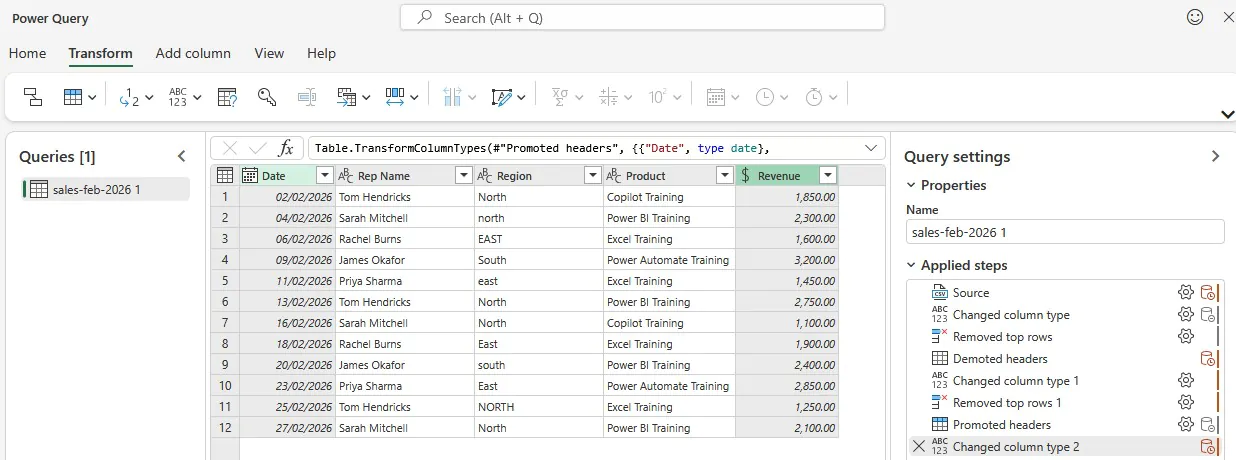
- Power Query Editor: the same transformation interface available in the desktop app: column operations, filtering, merging, appending, unpivoting, conditional columns, and more
- Close & Load: load the cleaned table back to the Excel grid, or save as a connection-only query
- Refresh: refresh existing queries from the Queries & Connections pane or via Data > Refresh All
The workflow is the same as the desktop. Open a workbook, go to the Data tab, select Get Data, choose your source, authenticate, select your table, and click Transform Data to open the editor.
Note that this isn’t the only way to import data in modern Excel, there are great IMPORT functions that have been added in 2026 too!
The Collaboration Upside
The feature most worth pausing on here isn’t the import wizard – it’s what this enables for teams.
Previously, Power Query was essentially single-player. The person who built the query owned it, because they were the only one with the tools to change it.
Now, anyone on the team with the right permissions can open the workbook in a browser and edit the query logic directly – without needing a specific device, a particular version of Excel, or the desktop app installed at all.
For teams where workbooks live on SharePoint, this really helps. A shared monthly reporting file can now be maintained, refreshed, and edited by multiple people from wherever they’re working.
The query logic isn’t locked to one machine.
From Our Training Rooms
The question we get asked most often when we teach Power Query in Liverpool St is some version of: “Can I do this without my laptop?”.
It’s usually from someone who discovered Power Query on a course, got back to the office, and found their shared workbooks were opened mainly in the browser by colleagues who couldn’t maintain them.
The underlying issue is almost always the same. One person has built a query that the whole team depends on, but only they can edit it – because only they open files in the desktop app.
Everyone else gets the data, but not the ability to change how it’s being prepared. That asymmetry causes problems whenever something needs updating and that one person isn’t available.
The web update addresses exactly this scenario. What we’ll be watching for in training sessions is whether people recognise it for what it is:
Not just a way to do Power Query without the desktop, but a way to make data prep a team responsibility rather than an individual one.
The Limitations Worth Knowing
The “full experience” label is accurate for most practical use cases, but there are gaps worth being clear about.
Local files aren’t supported yet. The desktop app can connect to a CSV or Excel file sitting on your hard drive. The web version needs sources to be cloud-accessible – OneDrive, SharePoint, SQL Server, OData, or other online connections. Microsoft has confirmed local file support is on the roadmap, but it isn’t there yet. If your source data lives locally, the desktop remains necessary.
Create and edit requires Business or Enterprise plan. Viewing and refreshing existing queries is available to all Microsoft 365 subscribers. But building new queries and opening the Power Query Editor requires a Business or Enterprise subscription. Personal and Family plan users can see query results and refresh – but not touch the editor.
Not every connector is available yet. The web version supports a useful set of data sources, but it doesn’t yet match the full connector library available in the desktop app. Microsoft has indicated more are coming.
Large-scale transformations still favour desktop. Browser-based Power Query is well suited to the kind of data prep most Excel users do – cleaning, reshaping, combining a handful of tables. For very large datasets or complex multistep pipelines, the desktop or a dedicated data tool remains a better fit for performance reasons.
If you manage workbooks that other people access via SharePoint or Teams, this update is relevant immediately.
The practical implication is that you can now build and edit Power Query connections in a workbook that lives in SharePoint, from a browser, and colleagues with Business or Enterprise plans can do the same.
You no longer need to ensure the person maintaining a query has the right device or the desktop app open.
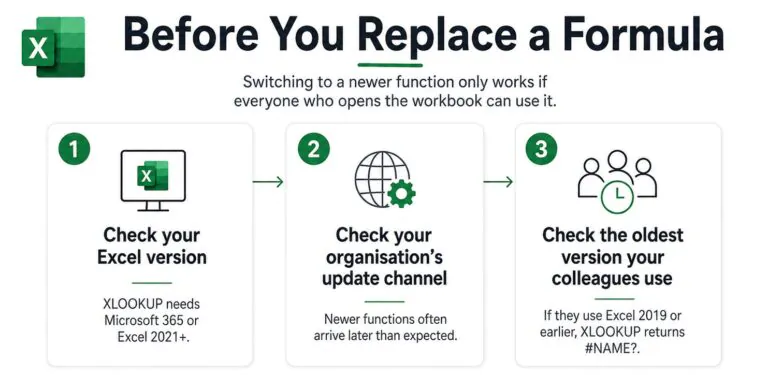
A few things to check before relying on this in a team setting:
- Confirm your organisation is on a Business or Enterprise Microsoft 365 plan
- Make sure data sources are cloud-accessible (SharePoint, OneDrive, SQL Server) rather than local paths
- If existing queries reference local file paths, they’ll need to be updated before they work properly from the browser
For organisations still on older Excel versions or personal Microsoft 365 plans, the desktop app remains the correct tool for building and editing queries.
A Note on Queries That Already Exist in Desktop Workbooks
If you have workbooks with queries already built in the desktop app, they’ll generally work fine when opened in Excel for the web – provided the data source is cloud-accessible and authentication is set up correctly.
The most common issue people encounter after this update is authentication.
Queries that were connected using Windows credentials or local network paths on a desktop won’t automatically authenticate in the browser.
You may need to re-enter credentials or switch the authentication method to something the web version supports (such as Microsoft account or OAuth).
If a refresh fails in the browser with a credentials’ error, opening the file in the desktop app, re-authenticating the data source, and saving back to SharePoint usually resolves it.
Is the Web Version Ready to Replace Desktop Power Query?
For most day-to-day Power Query tasks (cleaning a CSV, combining two SharePoint lists, reshaping a monthly export) yes, the web version is now a genuine option.
The editor is the same, the transformation steps work the same way, and the output lands in the grid exactly as expected.
Where the desktop still wins is at the edges: local file sources, the full connector library, complex pipelines with heavy data volumes, and anything requiring advanced M language work beyond the standard interface.
For the majority of Excel users who use Power Query for practical data prep rather than engineering-grade pipelines, these gaps rarely matter.
The bigger shift is the one that’s easy to overlook. Power Query in the browser isn’t just a convenience for people without a desktop – it’s a change in who can take responsibility for a workbook’s data logic.


- Facebook: https://www.facebook.com/profile.php?id=100066814899655
- X (Twitter): https://twitter.com/AcuityTraining
- LinkedIn: https://www.linkedin.com/company/acuity-training/