

REGEXTEST: Checking Your Regex Works In Excel
Contents
Regex is one of the most powerful additions to modern Excel, but it has a real learning curve to it!
Sometimes you’ll write what looks like the perfect patten, just to realise it isn’t doing what you expected.
When you’re learning or experimenting with regex in Excel, the most important step is making sure your pattern is correct, which is why Microsoft added REGEXTEST!
Its entire purpose is to let you check things first:
Does my regex actually match what I think it matches?
Why REGEXTEST Is So Useful When Learning Regex
Most regex functions return text, either extracted or manipulated.
But if nothing matches your initial pattern, you’ll get an error or blank result.
That makes debugging difficult, because you don’t always know whether:
- Your pattern is slightly wrong
- The data format is different than expected
- Or there genuinely isn’t a match
REGEXTEST removes that confusion.
It simply returns:
TRUE → your pattern matches
FALSE → your pattern doesn’t match
No messy outputs, no partial text, no complicated formula chains – just a clear signal that your regex is (or isn’t) working.
REGEXTEST Syntax
REGEXTEST is a pretty simple function, and the syntax isn’t hard to understand.
=REGEXTEST(text, pattern)
Text: The cell or string you want to test.
Pattern: Your regex rule.
If Excel finds a match anywhere in the text, it returns TRUE, and if not, it returns FALSE.
Which is why it’s great when learning this new skill in Excel!
Example: Testing A Regex Pattern
Let’s say you’re building a regex to identify codes that follow this structure:
Three capital letters, followed by three numbers.
Examples of valid formats:
ABC123
XYZ001
And for our invalid format, we have AB214, since it only uses 2 letters.
You can test whether a cell contains this structure using:
=REGEXTEST(A2, “[A-Z]{3}[0-9]{3}”)
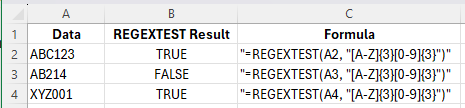
Pattern breakdown:
[A-Z]{3} – exactly three uppercase letters
[0-9]{3} – exactly three digits
REGEXTEST will now return TRUE if the pattern exists in the text, and FALSE if it doesn’t. This is the exact kind of workflow we teach on our top-rated Excel training that we run in London and Online, always test first then implement after!
This makes it very easy to check whether your regex is right before you apply it to the whole dataset.
Why Test First Instead Of Extracting Immediately?
When people first start using regex in Excel, they usually jump straight into extraction with REGEXEXTRACT.
But if the pattern is slightly off, you won’t get anything valuable from it, only errors!
Testing first is always the best way to go about it, especially if you’re new to regex.
By using REGEXTEST, you can confirm if your pattern is valid, matches the exact structure you need, and behaves consistently with mulitple rows.
Once you see consistent TRUE results, you can move on confidently to extraction or replacement.
A Simple Regex Testing Workflow
If you’re building or learning regex in Excel, a good workflow is:
1. Write your regex pattern
Focus only on defining the structure correctly.
2. Use REGEXTEST to validate it
Check multiple rows of data and confirm it returns TRUE where expected.
3. Adjust the pattern if needed
If results aren’t consistent, refine your regex until they are.
4. Move to the full regex function
Once testing is reliable, use the same pattern in your REGEXREPLACE to manipulate the data, or REGEXEXTRACT to pull out the data.
This approach saves time and prevents long nested formulas built on incorrect logic.
Conclusion
Regex in Excel can feel complex at first, especially when patterns don’t behave the way you expect.
Trying to extract results immediately often makes debugging harder than it needs to be.
REGEXTEST gives you a much simpler starting point.
By testing your patterns first and confirming they work, you can build formulas on a solid foundation – and avoid wasting time fixing logic later.
If you treat REGEXTEST as your first step whenever you build a regex pattern, you’ll find the whole process becomes faster, clearer, and far more reliable.

- Facebook: https://www.facebook.com/profile.php?id=100066814899655
- X (Twitter): https://twitter.com/AcuityTraining
- LinkedIn: https://www.linkedin.com/company/acuity-training/