

Excel’s New IMPORT Functions Explained – 2026
Contents
Microsoft just added some brand-new IMPORT functions, designed to make bringing external data into Excel easier!
Instead of digging through menus or writing your own queries, you can now just use these new formulas, IMPORTTEXT and IMPORTCSV.
Importing data is something we do all the time, downloading CSV files, opening data from text files, or pulling data from databases. Having some new functions to keep expanding that skill set is just going to save so much time!
The New IMPORT Functions
As we mentioned, these functions are designed for you to read data from text-based files directly into cells with formulas.
Instead of using the import wizard, you reference the file and Excel brings the data straight into the worksheet.
- IMPORTTEXT – A flexible function for text-based files
- IMPORTCSV – A simplified version designed specifically for CSV files
Both return data as a dynamic array (a more advanced concept covered in our advanced London Excel training), that in this case just means imported data will spill across to nearby cells automatically.
Essentially, Excel treats external text files more like dynamic and live data sources, rather than a static file. This means, when using these new functions, you have a much easier time importing and refreshing data.
Using IMPORTTEXT
IMPORTTEXT is the more flexible function, it takes text-based files, including TXT and CSV, with options to control how the data gets read.
You can specify the delimiter, text encoding, and which rows to include. This makes it suitable when files aren’t perfectly formatted or have slight differences.
IMPORTTEXT(patch, [delimiter], [skip_rows], [take_rows], [encoding], [locale])
Simple Example:
Let’s say you have a text file with survey responses, separated by tabs.
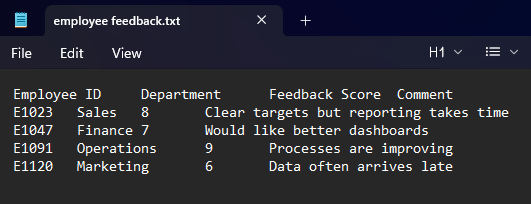
Using IMPORTTEXT, Excel can read the file and place each response into the correct columns, automatically.
Type: =IMPORTTEXT(“C:\Users\maxhi\Documents\employee-feedback.txt”) – but make sure you use the file path on your pc!
In this case, we don’t need any of the other optional fields, as tab is the default delimiter.

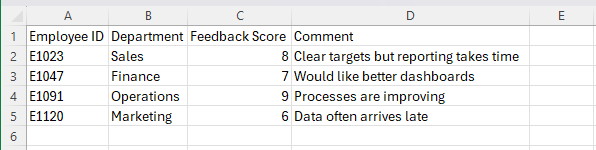
And all your data will flow into Excel! It takes the tabs as new columns, and line breaks are taken as new rows.
Since the data is attached to a real file, if you make any changes to the original file, the data in Excel will change too.
Pro Tip: If you wanted to ignore some of the data, how would you go about doing so? The key is in the [skip_rows] and [take_rows] fields!
To skip the first row, you can write it as: =IMPORTTEXT(“C:\Users\maxhi\Documents\employee-feedback.txt”, , 1)
Using IMPORTCSV
IMPORTCSV is a streamlined and more precise version of IMPORTTEXT, as it is built just for CSV files. It assumes your file is set up correctly as a CSV, with expected behaviours.
So if you ever have a clean CSV, then just default to using IMPORTCSV – take the following file for example:
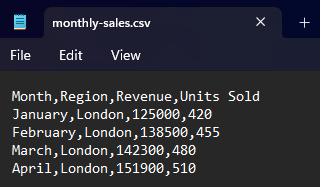
The data uses commas to separate columns, with new lines for different rows.
So writing our import as =IMPORTCSV(“C:\Users\maxhi\Documents\monthly-sales.csv”), brings all the data in immediately.
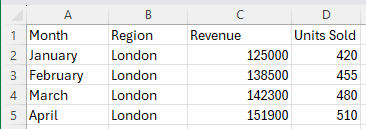
And once again, this data will update if the original data file changes! This is great for making dynamic tables, that don’t need to be manually updated.
Other IMPORT Functions
The new functions sit alongside Excel’s existing ways of bringing data in. Traditionally, users relied on:
- Opening files directlyf
- Using the Text Import Wizard
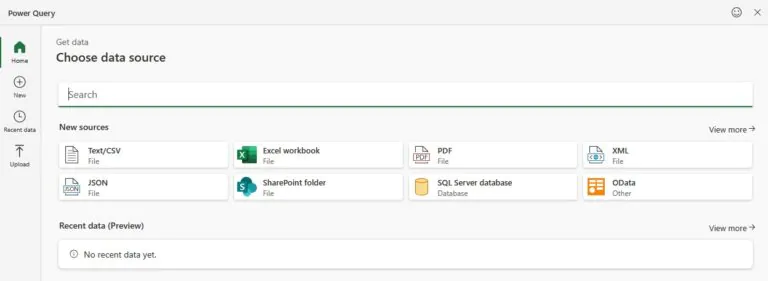
- Using Get & Transform (Power Query)
The key difference is that IMPORT functions are formula-based, while other methods are process-based.
This means the import logic lives in the worksheet itself, rather than behind menus or hidden steps.
From a team perspective, it makes your worksheet easier to track for employees, and the logic behind the import can be reviewed and edited easily too.
When to Use These vs Other Import Methods
The new IMPORT functions are best suited to simple, repeatable imports where the data structure doesn’t change dramatically.
It’s a great fit for anyone that wants a lightweight solution, and have predictable, consistent data files coming in.
Outside of that, if you just prefer to use functions, then use these instead of the usual imports!
Other methods, such as Power Query, are still better however if you need to edit the data before importing it.
IMPORT functions are simple and effective, while Power Query is for depth and control.
Conclusion
Excel’s new IMPORT functions offer a simpler way to bring external text and CSV data into worksheets using formulas.
For confident Excel users, they provide a cleaner, more transparent alternative to traditional import steps.
They won’t replace existing tools, but they fill a useful gap! Especially for quick, repeatable imports where clarity matters more than complexity.
Used in the right situations, they can make everyday Excel work feel noticeably smoother.
- Facebook: https://www.facebook.com/profile.php?id=100066814899655
- X (Twitter): https://twitter.com/AcuityTraining
- LinkedIn: https://www.linkedin.com/company/acuity-training/